
Microsoft Excel is used across industries for organizing information, performing calculations, analyzing data, and creating reports. But knowing how to enter data into a spreadsheet is very different from knowing how to use Excel efficiently.
Excel functions can automate calculations that would otherwise require considerable manual effort. For professionals who regularly work with sales data, financial information, customer records, project data, or operational reports, learning a few practical functions can make everyday work faster and more accurate.
You don't need to memorize hundreds of Excel functions to become more productive.
Start with functions that solve common workplace problems.
Professionals who want to build their Excel skills through structured, hands-on learning can explore our Microsoft Excel Training.
In this article, we'll explore five useful Excel functions:
IF
SUMIFS
COUNTIFS
XLOOKUP
IFERROR
We'll use the same sample sales dataset throughout the examples so you can see how each function could be applied in a realistic business scenario.
Sample Data Used in This Article
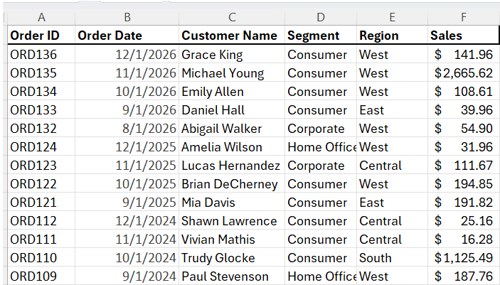
Assume we have an Excel worksheet containing the following sales information:
This is sample data created for demonstration and training purposes.
1. IF: Make Decisions Based on a Condition
The IF function is one of the most useful functions for adding business logic to an Excel worksheet.
It asks Excel to evaluate a condition and return one result when the condition is true and another when it is false.
The basic structure is:
=IF(logical_test, value_if_true, value_if_false)
Workplace Example
Suppose your company wants to identify orders with sales of at least $100 as High Value.
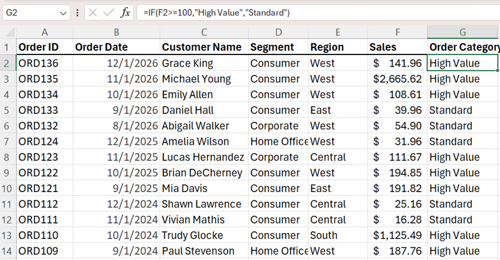
Add a new column called Order Category in dataset and use:
=IF(F2>=100,"High Value","Standard")
Excel evaluates the value in the Sales column.
If sales are $100 or more, it returns: High Value
Otherwise, it returns: Standard
Why IF Is Useful at Work
IF can be used to classify or flag information such as:
Met Target / Below Target
Approved / Review Required
On Time / Late
High Value / Standard
Pass / Fail
Eligible / Not Eligible
Instead of manually reviewing every row, Excel applies the rule automatically.
2. SUMIFS: Calculate Totals Based on Multiple Conditions
Adding a column of numbers is easy with SUM. But workplace questions are often more specific.
A manager may ask:
“What were our total Consumer sales in the West region?”
Now two conditions must be satisfied:
Segment must be Consumer
Region must be West
This is where SUMIFS becomes useful.
The general structure is:
=SUMIFS(sum_range, criteria_range1, criteria1, criteria_range2, criteria2)
Using our sample data:
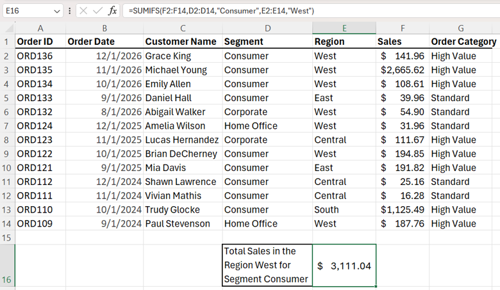
=SUMIFS(F2:F14,D2:D14,"Consumer",E2:E14,"West")
Where:
F2:F14 is the range of the Sales column
D2:D14 is the range of the Segment column and it checks for Segment = Consumer
E2:E14 is the range of the Region column and it checks for Region = West
Excel looks at the Sales column but only adds sales where both specified conditions are satisfied.
Using our sample dataset, the result would be:
$3,111.04
Why SUMIFS Is Useful at Work
SUMIFS can answer questions such as:
What are total sales for a particular region and customer segment?
How much revenue came from a particular product during a specific period?
What are total expenses for one department in a particular category?
How many dollars were billed to a particular client during a certain period?
This is much more useful for business analysis than repeatedly filtering data and manually adding values.
3. COUNTIFS: Count Records That Meet Multiple Conditions
Sometimes total dollar value is not needed.
You simply need to know how many records meet certain conditions.
For example:
“How many Consumer orders from the West region are of High Value?”
There are now three conditions:
Segment = Consumer
Region = West
Order Category = High Value
We can use:
=COUNTIFS(D2:D14,"Consumer",E2:E14,"West",G2:G14,"High Value")
Where:
D2:D14 is the range of the Segment column and it checks for Segment = “Consumer”
E2:E14 is the range of the Region column and it checks for Region = “West”
G2:G14 is the range of the Order Category column and it checks for “High Value”
For this dataset, Excel returns:
4
Why COUNTIFS Is Useful at Work
COUNTIFS is useful when you need to count:
Open issues by department
Completed projects by manager
Customers by region and category
Orders meeting particular criteria
Employees meeting training requirements
Support tickets by status and priority
SUMIFS tells you how much. COUNTIFS tells you how many.
Understanding that distinction makes it easier to choose the right function.
Excel is excellent for calculations and everyday data analysis, but larger reporting and visualization requirements may call for other tools. If you're deciding which skill to develop next, read Excel vs. Power BI: Which One Should You Learn First?
4. XLOOKUP: Find Information Quickly
Business spreadsheets often contain large amounts of information, and finding specific details manually can be time-consuming.
Suppose your Manager provides you an Order ID: ORD122
and asks: “Who is the customer associated with this order?”
You could search through the table manually. For a large dataset, however, manually searching for the information can be inefficient. This is where XLOOKUP becomes useful.
The basic structure is:
=XLOOKUP(lookup_value, lookup_array, return_array)
For example:
=XLOOKUP("ORD122",A2:A14,C2:C14)
Excel searches the Order ID column for ORD122 and returns the corresponding value from the Customer Name column:
Brian DeCherney
XLOOKUP vs. VLOOKUP
XLOOKUP provides a flexible approach to many common lookup tasks and is worth learning if you use a version of Excel that supports it.
Understanding VLOOKUP is still valuable when working with older spreadsheets, but for new lookup formulas, XLOOKUP is often a good place to start.
Why XLOOKUP Is Useful at Work
XLOOKUP can help retrieve:
Customer information
Product prices
Employee information
Order details
Department names
Inventory information
It becomes especially valuable when working with larger datasets where manually searching for information is inefficient.
5. IFERROR: Handle Formula Errors More Professionally
Even a correctly designed spreadsheet can encounter errors. The IFERROR function allows you to display a meaningful message when an error occurs.
The basic structure is:
=IFERROR(value, value_if_error)
Where:
value — the formula or expression Excel should evaluate.
value_if_error — what Excel should return if the formula produces an error.
For example, suppose we use XLOOKUP to search for an Order ID that does not exist:
=XLOOKUP("ORD999",A2:A14,C2:C14)
Excel may return an error because it cannot find the requested order.
Instead of displaying an Excel generated error to the user, we can combine the formula with IFERROR:
=IFERROR(XLOOKUP("ORD999",A2:A14,C2:C14),"Order Not Found")
Now, instead of displaying an Excel error, the worksheet displays:
Order Not Found
This makes the spreadsheet much easier for other people to understand.
Note: XLOOKUP has its own option for handling values that are not found, this example demonstrates how IFERROR can be used to replace formula errors with a more meaningful message.
Why IFERROR Is Useful at Work
IFERROR can help make reports and worksheets cleaner by replacing errors with meaningful messages such as:
Not Found
No Data Available
Check Order ID
Not Applicable
This can be particularly useful when spreadsheets are shared with managers, customers, or employees who may not understand Excel error codes.
However, IFERROR should be used carefully. It should help communicate expected errors—not hide problems in formulas that need to be corrected.
The Power of Excel Functions
The real power of Excel comes when functions are combined with business knowledge. Together, they can turn a simple worksheet into a much more useful business tool.
Don't Just Memorize Formulas—Understand the Business Question
Learning Excel is not about memorizing hundreds of formulas. Before writing a formula, ask:
What business question am I trying to answer?
If you want to classify something based on a rule, consider IF.
If you want to add values based on several conditions, consider SUMIFS.
If you want to count records matching several conditions, consider COUNTIFS.
If you need to retrieve information, consider XLOOKUP.
If you want to handle expected formula errors more clearly, consider IFERROR.
Understanding the purpose of the function makes it much easier to remember how and when to use it.
Excel Skills Still Matter in an AI-Powered Workplace
AI tools can now suggest Excel formulas, explain functions, and help users troubleshoot spreadsheet problems.
However, professionals still need to understand what the data represents and whether a suggested formula answers the correct business question.
If AI suggests a SUMIFS formula, someone still needs to understand which fields should be summed and which conditions should be applied.
If AI creates an XLOOKUP formula, someone should be able to verify that the correct lookup and return columns are being used.
AI can help you work with Excel. Understanding Excel helps you determine whether the AI's answer is correct.
For more examples of how AI can support everyday professional tasks, see 7 Everyday Tasks You Can Automate with AI at Work.
Conclusion
Excel contains hundreds of functions, but professionals do not need to learn all of them at once. Start with functions that solve common workplace problems.
IF, SUMIFS, COUNTIFS, XLOOKUP, and IFERROR provide a strong foundation for working with business data more efficiently.
The goal is not simply to know Excel functions. The goal is to use Excel to find answers, automate repetitive calculations, and make better use of workplace data.
Frequently Asked Questions
1. What are the most useful Excel functions for professionals?
Some of the most useful Excel functions for everyday workplace tasks include IF, SUMIFS, COUNTIFS, XLOOKUP, and IFERROR. These functions can help professionals classify information, calculate conditional totals, count records, retrieve data, and handle formula errors more effectively.
2. Should I learn XLOOKUP or VLOOKUP?
If your version of Excel supports XLOOKUP, it is a good function to learn for new spreadsheets because it provides a flexible way to retrieve information from tables. However, VLOOKUP is still commonly found in existing workplace spreadsheets, so understanding how it works remains useful.
3. What is the difference between SUMIF and SUMIFS?
SUMIF calculates a total based on a single condition, while SUMIFS can calculate a total using multiple conditions. For example, SUMIFS can calculate sales where the region is West and the customer segment is Consumer.
4. What is the difference between COUNTIF and COUNTIFS?
COUNTIF counts records based on one condition, while COUNTIFS allows multiple conditions. For example, COUNTIFS could count orders that are from the West region, belong to the Consumer segment, and have a Profitable status.
5. Can AI help me write Excel formulas?
Yes. AI tools can help suggest formulas, explain Excel functions, and troubleshoot formula errors. However, users should still understand the data and the business question being analyzed so they can verify that the suggested formula is appropriate and accurate.

Chandraish Sinha is the Founder and President of Ohio Computer Academy, a leading institution committed to delivering high-quality IT education. With a passion for teaching and a belief in his company’s mission—Inspire, Educate & Evolve—Chandraish brings over 25 years of experience in the Information Technology industry.
Explore more of his work on his Amazon Author Profile.
0 Comments
0 Comments


Post a Comment