
Excel has three main types of cell references: Relative, Absolute, and Mixed. In this blog, we will explore relative cell references, how they work, and how to use them in Excel formulas.
New to Excel? Watch our Free Excel for Beginners Playlist on YouTube to get started with step-by-step video tutorials.
In Excel, data is stored in a worksheet containing rows and columns and the intersection of a row and column is a cell. Rows are represented by numbers and columns by letters. A cell reference or cell address is a combination of the row number and column letter that identifies the cell, for e.g. A1, B2 etc.
Cell references help to identify the data present in the specified cells.
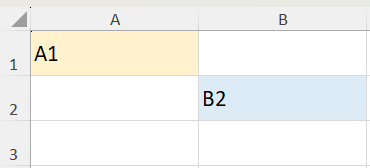
As shown in the figure below, A1 represents column A , row 1, and B2 represents column B, row 2.
WHAT IS RELATIVE CELL REFERENCE?
Relative cell reference is based on the relative position of the cell containing the formula and the cell/data it refers to. If the position of the cell containing the formula changes, its reference is also changed. If the formula is copied in rows or columns, the reference automatically changes. By default, all formulas use relative reference.
Let us understand relative cell reference with an example:
The spreadsheet below shows the marks of 5 students in 3 subjects. We need to calculate the total marks for each student.
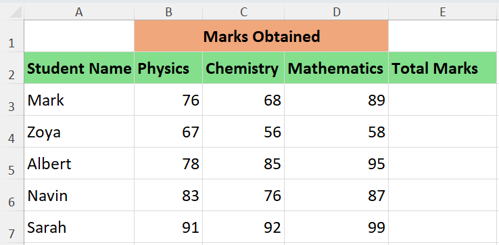
To calculate the Total marks for the first student, Mark, use the formula in cell E3 as
=B3+C3+D3
The following output is obtained
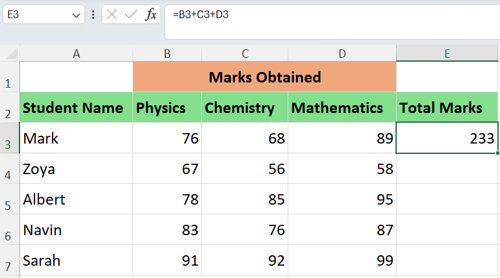
Since this calculation needs to be repeated for all other students, use autofill option on cell E3
Click on the formula tab in the ribbon and then on Show Formulas. You will see the following output which shows that cell references have changed accordingly:

Relative cell references are particularly useful when you need to repeat calculations across multiple rows or columns in Excel.
Unlike relative references, absolute cell references remain fixed when formulas are copied to other cells. To learn more, read our next guide: What Is an Absolute Cell Reference in Excel?
Take Your Excel Skills Further
Want to use Excel confidently at work? Join Ohio Computer Academy’s Excel Beginners to Advanced course and build practical skills through hands-on exercises and instructor-led training. Attend online or in person in Dublin, Ohio.
Explore Excel Beginners to Advanced

Chandraish Sinha is the Founder and President of Ohio Computer Academy, a leading institution committed to delivering high-quality IT education. With a passion for teaching and a belief in his company’s mission—Inspire, Educate & Evolve—Chandraish brings over 25 years of experience in the Information Technology industry.
Explore more of his work on his Amazon Author Profile.
0 Comments
0 Comments


Post a Comment