Ohio Computer Academy - IT Training & Vocational Education in Dublin, OH
All Courses
  • Free Training Courses
  • AI for Your Role
  • AI & Machine Learning
  • Cloud Tech
  • Data Science
  • DevOps
  • Dashboarding/BI
  • Database
  • WebDevelopment
  • Programming & Coding
  • MS Office & Workplace Productivity
  • QA & Test Automation
  • Professional & Career Development
  • Cyber Security

Courses

  • Computer Fundamentals for Beginners
  • MS Word for Beginners
  • Microsoft Excel for Beginners
  • Microsoft Azure for Beginners
  • AWS Cloud for Beginners
  • Oracle SQL Fundamentals
  • Tableau Fundamentals
  • Power BI Fundamentals
Explore All Programs

Courses

  • AI Essentials
  • AI for Administrative Professionals New Launch
  • AI for Managers & Team Leads
  • AI for Data Analytics & Power BI
  • AI for Software Developers
  • AI for Database & SQL Professionals
  • AI for Project Managers
  • AI for Marketing Professionals
  • AI for Sales Professionals
  • AI for HR Professionals
  • AI for Finance Professionals
  • AI for Customer Support Professionals
  • AI for QA & Test Engineers
  • AI for IT Support & System Admins
  • AI for Cybersecurity Analysts
  • AI for Job Seekers
Explore All Programs

Courses

  • Learn Claude Basics New Launch
  • Learn Claude Advanced New Launch
  • Applied Artificial Intelligence (AI) New Launch
  • AI for Workplace Productivity
  • Azure Fundamentals with AI
  • Advanced Microsoft Azure with AI
  • AI Implications for Business Strategy
  • Mastering ChatGPT & Generative AI Tools
  • Prompt Engineering
  • Agentic AI Solutions
  • AI Product Management
  • AI for Quality Control
Explore All Programs

Courses

  • AZ-900 Azure Fundamentals
  • DP-900 Azure Data Fundamentals
  • DP-100 Data Science on Azure
  • AWS Essentials
  • AWS Cloud Practitioner
  • AWS Solutions Architect
Explore All Programs

Courses

  • DP-100 Data Science on Azure
Explore All Programs

Courses

  • DevOps Essentials
  • DevOps with AWS
  • DevOps with Azure
Explore All Programs

Courses

  • Business Analytics: From Data to Insights New Launch
  • Power BI Advanced
  • Data Analytics with Excel
  • Tableau Beginner
  • Tableau Data Consumer
  • Alteryx & Tableau
  • Tableau Advanced
  • Tableau Certification prep
  • Power BI Beginner
  • Cognos Analytics
Explore All Programs

Courses

  • SQL Server for Beginners
  • SQL for Analysts
  • SQL Server Advanced
  • SQL Server T-SQL Programming
  • SSIS
  • Oracle SQL for Beginners
  • Oracle PL/SQL
  • Oracle SQL Advanced
  • Big Data with Hadoop: HDFS, MapReduce & Ecosystem Tools
  • MS Access
Explore All Programs

Courses

  • Angular Frontend Development
  • Spring 5 Framework
  • Full Stack Web Development
Explore All Programs

Courses

  • Learn Python
  • Python PCEP
  • Python PCAP
  • JavaScript & jQuery
  • Java Certification
  • Python for Data Science
  • Machine Learning with Python
Explore All Programs

Courses

  • Analyzing Data with Excel New Launch
  • Workplace Digital Skills
  • Excel Beginners to Advanced Trending Now
  • Excel for Finance
  • Excel for HR
  • Workplace Computer Skills
Explore All Programs

Courses

  • Selenium QA Automation (Java)
  • Selenium QA Automation (Python)
  • API Testing
  • QA Automation with Python (Advanced)
Explore All Programs

Courses

  • Scrum Master Certification
  • Lean Six Sigma Green Belt Certification
  • Business Analyst
Explore All Programs

Courses

  • Cyber Security Foundations for Beginners
  • Computer Networking for Cybersecurity
  • Windows & Linux Security Administration
  • Ethical Hacking & Penetration Testing
  • Artificial Intelligence (AI) in Cybersecurity
Explore All Programs
  • About Us
    • OCA Skill Sprint Method
    • Meet the Founder
  • Blogs
    • Career Building
    • AI / Machine Learning
    • MS Excel
    • Programming Essentials
    • Database
    • Cloud Computing
    • Tableau
    • Power BI
    • Web Development
    • Tips for Success
    • Qlik
    • Soft Skills
    • Technology
    • Business Intelligence Analyst
    • Message from the CEO
    • DATA ANALYST
  • TechCred
  • Find Your Training
  • Contact Us
Ohio Computer Academy - IT Training & Vocational Education in Dublin, OH


  • info@ohiocomputeracademy.com
  • +1 866-648-7284
  • Home
  • About Us
  • Blogs
    • Career Building
    • AI / Machine Learning
    • MS Excel
    • Programming Essentials
    • Database
    • Cloud Computing
    • Tableau
    • Power BI
    • Web Development
    • Tips for Success
    • Qlik
    • Soft Skills
    • Technology
    • Business Intelligence Analyst
    • Message from the CEO
    • DATA ANALYST
  • TechCred
  • Find Your Training
  • Contact Us
Find With Us
  • Home
  • Blogs
  • MS Excel
  • Absolute Cell Reference in Excel

Absolute Cell Reference in Excel

In the last blog, we learned about Relative Cell Reference . This article we explain Absolute Cell Reference in Excel with an example.

To recap, in Excel, data is stored in a worksheet containing rows and columns and the intersection of a row and column is a cell. Rows are represented by numbers and columns by alphabets. A cell reference or cell address is a combination of the row number and column letter that identifies the cell, for e.g. A1, B2 etc.

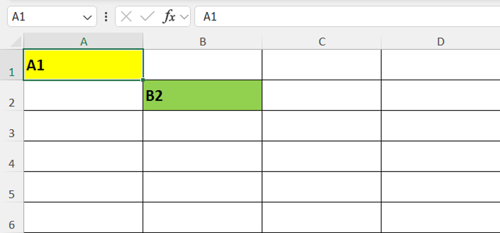
We can recall that cell references help to identify the data present in the specified cells. As shown in the figure below, A1 represents column A , row 1, and B2 represents column B, row 2.
Cell Reference

The important Cell references in Excel are : Relative, Absolute and Mixed. This blog will help you understand Absolute cell reference.

New to Excel? Watch our Free Excel for Beginners Playlist on YouTube to get started with step-by-step video tutorials.

What is Absolute Cell reference?

Relative references change when a formula is copied (or auto filled) to another cell. On the contrary, absolute references remain constant wherever they are copied. In Excel, an absolute reference is a cell reference in which the column and row coordinates remain constant when copying a formula from one cell to the other. A dollar symbol ($) is inserted before the row and column coordinates to make the reference absolute. For instance, $B$1 is an absolute reference to cell B1.

When should you use Absolute Cell Reference?

Absolute cell references are used when we need to perform a similar calculation on multiple cells, while some of the variables in the formula need to remain constant. 

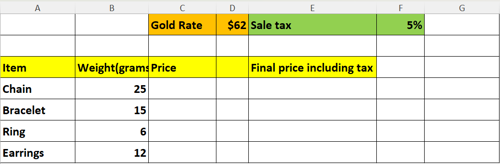
Let us consider the following example to understand absolute cell reference. The sheet shown below contains the weight of 4 items of jewelry purchased. We need to calculate the price of each item, which is the product of the weight of the jewelry (column B) and the gold rate (cell D1). We must keep in mind that D1 has to remain a constant throughout the calculation.
Sample Excel data displaying Items, their Weight, Gold rate, and Sales tax.

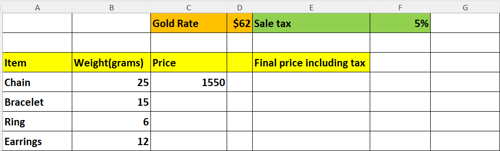
To calculate the price for the first item ‘Chain’, use the formula in cell C4 as

=B4*D1

We get the following output:
                                                                     Calculating the price of the first item

Since the same calculation needs to be repeated, we drag the fill handle on cell C4 up to C7. The following output will be displayed:
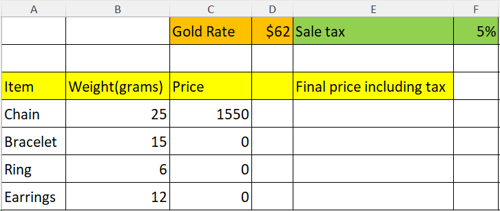
Incorrect values in cells C5 to C7

Incorrect values

Note that the price of the first item, viz, the chain was calculated correctly, but when we auto filled the rest of the cells, the output is incorrect. This is because, by default, Excel uses relative cell reference. We can check this by clicking on the Formula tab in the ribbon and then on Show Formulas. Observe in the sheet below that the variables have changed relatively to (B5, D2), (B6, D3) AND (B7, D4). Our objective is to keep D1 constant because it contains the gold rate.
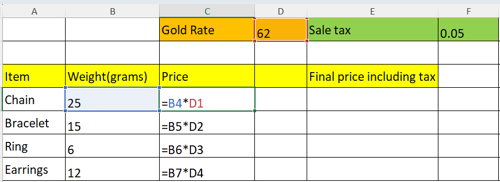
Relative cell reference caused incorrect output

Resolution

To fix this, we need to use absolute cell reference, which means, the D1 should remain constant in the formula. We will insert a dollar symbol ($) before the row and column coordinates. The new formula on cell C4 will now be

=B4*$D$1

Now, click on the fill handle and drag it up to cell C7.This will produce the correct output as shown below.
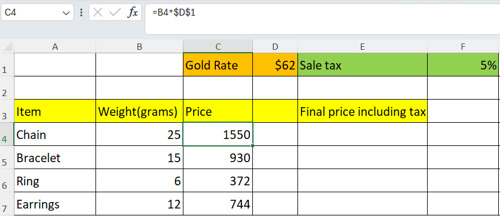
Correct output using Absolute cell reference

Absolute references are used when one or more variables in a calculation remain fixed or constant.

Reader exercise:

In the above example, the final price of each item needs to be calculated by adding sales tax(cell F1). Use the formula for the first item, viz. Chain, in cell E4 as

=C4+(C4*F1).

Using the above sheet, Readers should calculate the Final price for the remaining items. Check the output and use absolute reference to correct the same. Write your correct formula in the comments section below.

If you have any queries, or want to know the formula using absolute cell reference, feel free to type your question in the comments section.

Build Your Excel Skills with Hands-On Training

Ready to go beyond cell references? Join Ohio Computer Academy’s Excel Beginners to Advanced course and learn to apply Excel skills through practical exercises and instructor-led guidance. Attend online or in person in Dublin, Ohio.

Explore Excel Beginners to Advanced

Like
Chandraish Sinha

Chandraish Sinha is the Founder and President of Ohio Computer Academy, a leading institution committed to delivering high-quality IT education. With a passion for teaching and a belief in his company’s mission—Inspire, Educate & Evolve—Chandraish brings over 25 years of experience in the Information Technology industry.

Explore more of his work on his Amazon Author Profile.

0 Comments

Add Your Comment

Post a Comment

Required fields are marked *

✅ Thanks for adding your comment! It will appear after moderation.

0 Comments

Related Blogs
View All Blogs
Compare Two Columns in Excel with MATCH and ISNUMBER
Read More
Why MS Excel is important for an IT novice
Read More
MS Excel Practice Questions
Read More
Blog Gallery
Ohio Computer Academy - IT Training & Vocational Education in Dublin, OH

Registered with the Ohio State Board of Career Colleges and Schools — School Registration No. 2395

About Us
  • Contact Us
  • Our Story
  • Training Gallery
  • Reviews
  • Books
  • Greater Columbus Training Center
Trainings/Services
  • Course Categories
  • Learning Paths
  • Frequently Asked Questions
  • AI Advantage
Contact Us
  • Phone:+1 866-648-7284
  • E-mail: info@ohiocomputeracademy.com
  • Address:

    Dublin, Ohio
    5900 Sawmill Road, Suite # 150, Dublin, OHIO 43017 USA

Thank you
Failed
Free Training Courses
  • Computer Fundamentals for Beginners
  • MS Word for Beginners
  • Microsoft Excel for Beginners
AI Courses
  • Claude Basics
  • Claude Advanced
  • AI for Workplace Productivity
  • Prompt Engineering
  • Agentic AI Solutions
  • AI for Quality Control
Cloud Tech
  • DP-900 Azure Data Fundamentals
  • DP-100 Data Science on Azure
  • AWS Technical Essentials
  • AWS Cloud Practitioner
  • AWS Solutions Architect
DevOps
  • DevOps Essentials
  • DevOps with AWS
  • DevOps with Azure
Dashboarding/BI
  • Tableau Beginner
  • Power BI Beginner
  • Data Analytics with Excel
Database
  • Oracle SQL for Beginners
  • SQL for Analysts
  • SQL Server for Beginners
MS Office & Workplace Productivity
  • Workplace Digital Skills
  • Excel for Finance
  • Excel for HR
  • Excel Beginners to Advanced
  • Workplace Computer Skills
Learning Hub
  • Begin Your IT Career
  • Generative AI & Workplace Productivity Foundations
  • Claude AI Learning Path
  • Data Visualization Foundations
  • Data Analytics Career Path
  • AI for Business & Data Applications
  • Programming Foundations & Development Path

© 2026 Ohio Computer Academy. All rights reserved.

  • Privacy
  • Terms & Conditions