
The sample Scott schema is good for learning Oracle but it does not come as default with Oracle installation. We need to install it separately. It is available to the user Scott. In this blog, we will see how to unlock sample Scott user so that we can access the sample schema.
Oracle does provide the script of this schema in the db_home directory. The name of the script is scott.sql. We will make small modifications to the file and run the script.
High-level steps
Locate scott.sql in db_home directory
Modify the connection string in the scott.sql
Execute the script scott.sql in cmd
Modifying scott.sql
The scott.sql file is located in the folders under db_home. If you have followed the installation instructions for Oracle 19c , your file will be in the path \app\db_home\rdbms\admin.
Open this file in the notepad and search for “CONNECT SCOTT/TIGER”.
To comment the above statement, add REM in front of it, Rem CONNECT SCOTT/TIGER
Now copy and paste CONNECT SCOTT/TIGER in the next line and change it to CONNECT SCOTT/TIGER@orclpdb. orclpdb is the name of our pluggable database.
Save and close scott.sql
Execute scott.sql in command prompt (cmd)
Type cmd in your windows start a program to invoke the command prompt (cmd)
Login to sqlplus as sysdba by using the command: sqlplus / as sysdba

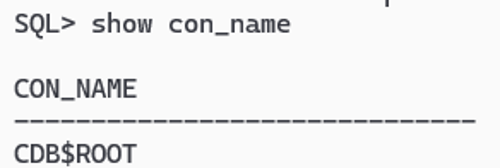
Check the container name by using the command: show con_name. The output displays that we are connected to container database CDB$ROOT.
Switch to the Pluggable Database
Use Alter command to switch from container database to orclpdb. Use the command shown below
ALTER SESSION SET CONTAINER = ORCLPDB;
Verify the name and status of your pluggable database by running:
SELECT NAME, OPEN_MODE
FROM V$PDBS;
Note: If your installation followed our Oracle Installation guide, the pluggable database name should be ORCLPDB. If your installation uses a different name (for example XEPDB1), substitute that name in the remaining commands.
Check if the pluggable database orclpdb is open by querying the v$pdbs view. The OPEN_MODE of READ WRITE shows that the pluggable database is open.
If OPEN_MODE shows as MOUNTED that means the database is not open and it needs to be open by using the Alter command.
If the Database is Mounted, Open It
Check Whether Scott Already Exists
Verify if Scott user is available in the pluggable database. Use the command.
Execute scott.sql
If Scott user is not in the list of users, then execute the scott.sql script by using the @ symbol and path of your file. In my case, the path is D:\app\db_home\rdbms\admin\scott.sql. I will execute this script by using the command
Verify Scott was Created
SELECT USERNAME
FROM ALL_USERS
WHERE USERNAME = 'SCOTT';
You will see the user scott this time.
List Scott Tables
Use the statement Select * from tab; to list all the tables in the Scott schema.
To refresh about RDBMS concepts, click on Basics of RDBMS

Chandraish Sinha is the Founder and President of Ohio Computer Academy, a leading institution committed to delivering high-quality IT education. With a passion for teaching and a belief in his company’s mission—Inspire, Educate & Evolve—Chandraish brings over 25 years of experience in the Information Technology industry.
Explore more of his work on his Amazon Author Profile.



Post a Comment