
Below section will provide you an overview of Tableau desktop.
To follow self-paced step-by-step learning follow our blogs at
https://www.learntableaupublic.com/
History
Tableau software is an interactive BI and data visualization software company.
Founded in 2003 by Christian Chabot, Pat Hanrahan and Chris Stolte, researchers at the Department of Computer Science at Stanford University. Currently Tableau is owned by Sales Force.
What is Tableau
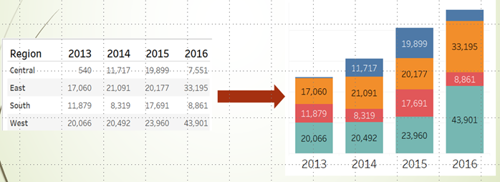
Tableau is a BI and data-visualization application. It can extract raw data from diverse sources and present data in easy-to-understand format. Tableau helps in data analytics, by helping users to examine the data from different perspective.
Installation
For this course you need to download:
Tableau desktop (available for only two weeks trial).
Students can get free license for one year
Tableau Public (available for free but all visualizations will be saved on Tableau public cloud)
To Download, follow the below link
Tableau Desktop from tableau.com
Tableau Public from public.tableau.com
Overview of Tableau
Tableau’s powerful visualizations help business users in gaining useful insights into their data.
Tableau helps business is creating interactive visualization to gain data insights.
Tableau can connect to any data source. Tableau uses the data at a granular level. Data is not pre-aggregated.
Components of Tableau are Tableau desktop, Tableau Server, Tableau Public and Tableau data prep.
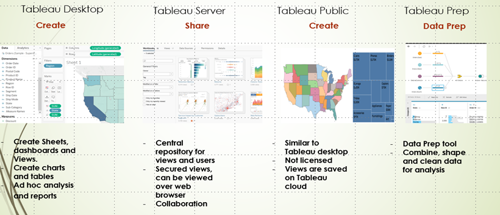
Developer uses Tableau desktop to create visualizations, dashboards and stories.
Dashboards are deployed on the Tableau Server. User access dashboards through server url.
Tableau desktop can use data as a “Live” connection or as an “Extract” (TDE).
Tableau desktop design file is called a “Workbook”. It has an extension. twb.
Tableau workbooks can also be packaged with data. This packaged workbook is a zip file with extension. twbx.
In the absence of the server, Tableau design files can be viewed by using Tableau Reader. Tableau reader is available for free download and can open twbx files.
Tableau Public is a free service provided by Tableau software that allow users to publish their dashboards.
Tableau Online is Tableau server on the cloud. Organizations can publish their dashboards on the cloud. Only authorized users can interact with the data and dashboards.
Tableau Prep is an application to perform data preparation.
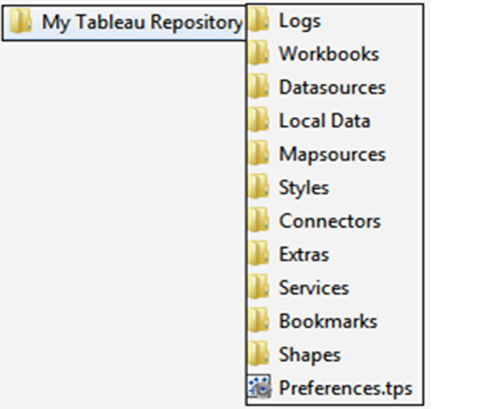
My Tableau Repository Folder
When Tableau Desktop/Public is installed, it creates a “My Tableau Repository” folder in your windows explorer under “My Documents” folder.
My Repository folder contains all the files required for Tableau dashboard development.
Connecting to data
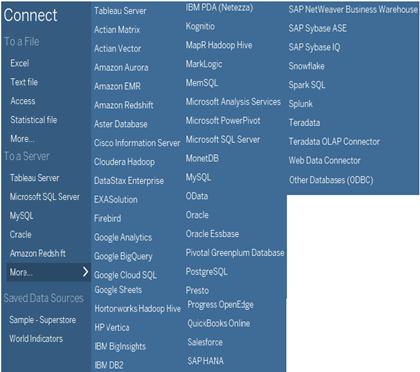
Tableau connects to variety of data sources. Tableau connects to most of the data sources natively.
Data Connection in Tableau
When Tableau desktop is launched, Data connection page comes up. Tableau desktop personal edition or public provides access to only file-based data sources such as Excel and Text files. Licensed version of Tableau desktop allows connection to any data source. You can connect to new data, data on the server or saved data sources.
In Tableau database tables and excel files work in a similar fashion. Individual worksheets in excel, work as database Tables. Data can be sourced from one or more sheets or tables.
Since version 2020, Relationships are a new way of combining data in Tableau. Developer need not remember the type of join to use but should focus on tables are related. Tables are related based on common field names.
Lab1. Connecting to the data source
In this exercise we will connect to Sample-SuperStore.xls.
This file is located under My Tableau repository/Datasources folder. Before moving further, review the file in xls. If this file is not available, please request your instructor. Copy the file under \Documents\My Tableau Repository\Datasources\2020\en_US-US
Launch Tableau desktop.
Click on “Excel” under Connect
Browse to Sample – Superstore.xls under the following path \Documents\My Tableau Repository\Datasources\2020\en_US-US
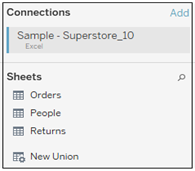
Name of the datasource and sheets in xls will be visible. Datasource name (Sample - Superstore) can be modified.
After selecting the file, you will see the following Connections screen,
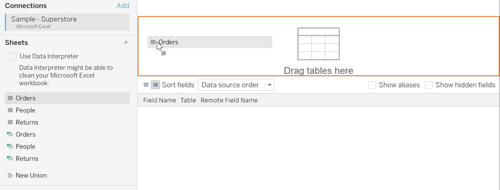
Drag Orders table/sheet to “Drag tables here” space.
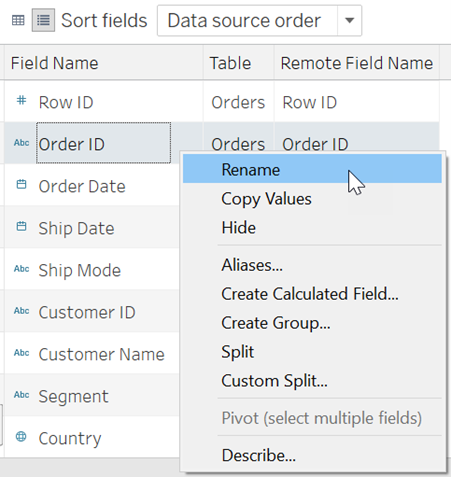
Explore different options. You can rename the columns and change some of the other properties.
Manage metadata option will provide a useful interface to make these changes.
Click on Go to Sheet or Sheet 1 at the bottom to navigate to development canvas of Tableau.
Tableau automatically segregate your data in Dimensions and Measures. For each table, dimension fields appear above the gray line and measure appear below the gray line. Also, Dimensions appear in blue and measures appear in green.
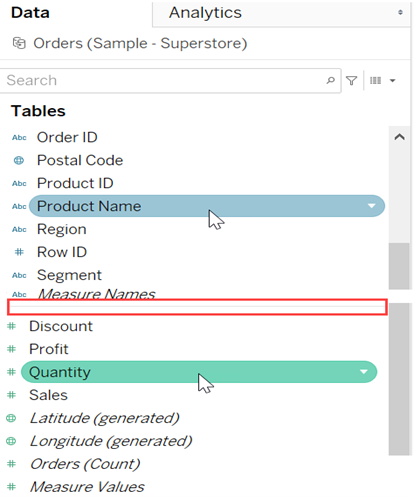
Tableau Design Interface
Tableau desktop is a development environment and provides functionality to develop interactive visualization
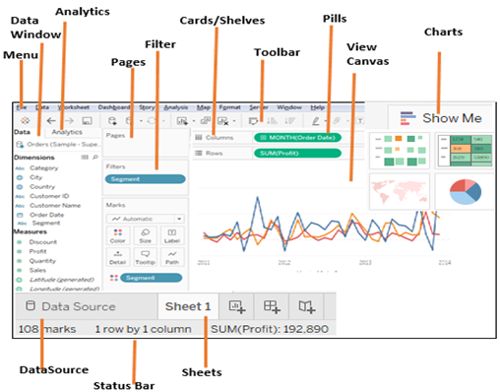
Menu. To create a new file or save as existing file. Can be used to create new sheets, dashboards etc.
Data window. Displays data connection and Dimensions and Measures in the data source.
Analytics. Contains ready-to use objects for faster analysis of data.
Pages. If a dimension is placed on Pages, displays separate page for each dimension. If a measure is used then measure is converted to discreet measure.
Filters. Filter shelf is used to place filters that limit the data.
Cards/shelves. Views are created by placing fields on the cards or shelves. Mark card have different shelfs such as color, size, label, detail, tooltip. Fields can be placed on these shelves. Mark Type can be changed from the drop down.
Toolbar. Provide quick access to undo/redo, adding sheets, sorting, displaying labels and so on.
Pills. Fields/ calculations on the rows/columns are called Pills. Click on a pill to access pull down menu options such as filter, Table calculations etc.
View/Canvas. Displays visualization created by the fields placed on the shelves.
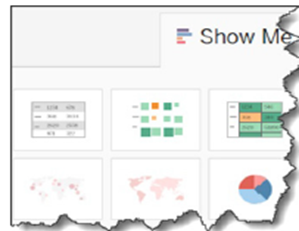
Show Me. For fields selected in the data window, Tableau suggests the best suited visualization. Different visualizations can be selected in the "Show Me” box.
Status bar. Displays various attributes of the visualization in the current worksheet. It displays information such as number of Marks, number of rows and columns and aggregated measure.
Creating Visualizations
To create a view, place the required fields from Dimensions and Measures from the data pane, on to Columns and Rows shelf.
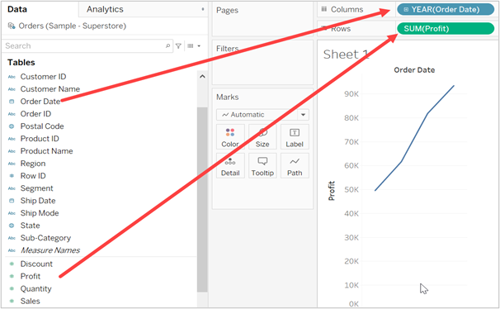
Click on Show Me on the right, to see Tableau’s suggestions based on the field selected.
Lab1. Creating your first visualization – Trend Chart
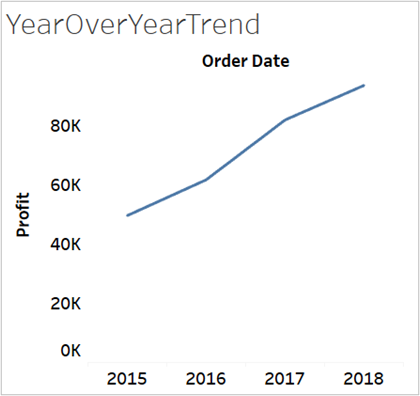
Ques. Products are being sold for the past four years. What is the profit over time?
Solution:
From Dimensions, double click on Order Date or place it on Rows.
From Measures, double click on Profit.
Tableau will use best visualization practice and will create a Trend line or Bar chart. Make sure Mark type is set to Automatic. Mark Type can be changed to get any desired visualization.
Tip: If you don’t see a Trend chart, you can select one from Show Me.
Rename this sheet as YearOverYear Trend.
Lab2. Create a Stack chart
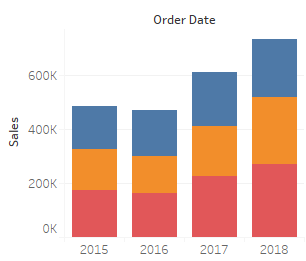
Ques. Find out how different Categories contribute to Sales
Solution:
Create a new sheet, name it Stack Chart.
From Dimensions, place Order Date on Columns and Sales on Rows.
Place Category on Color.
This will create a Stack chart automatically. If not then select one from Show Me.
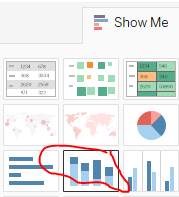
Your Stack chart will look like the one below:
Lab3. Creating a dashboard
Dashboard can display multiple sheets in one view
From the menu on the top, navigate to Dashboard and select New Dashboard.
On the left, it will display the two sheets you have created so far.
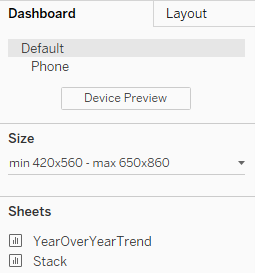
Double click on YearOverYearTrend and Stack one by one. They will display side-by-side on the Dashboard.
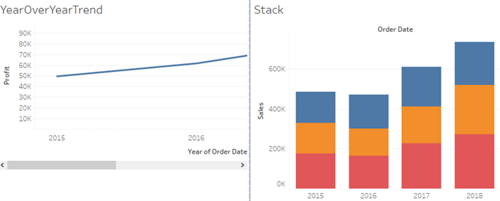
Check different options available on the dashboard page.

In this introductory course, you will learn:
Tableau Desktop
Connecting to Data
Creating Visualizations
Tableau is an essential tool for anyone looking to build a career in data visualization and business intelligence. Since organizations today rely heavily on data-driven decision-making, Tableau skills are valuable across many industries. This introductory course will give you a brief overview of Tableauso that you can begin your journey into data analytics and visualization.