
Microsoft Power BI is a Business Intelligence application. It is a suite of tools designed for better understanding of data. Power BI helps in extracting data from multiple sources, shaping or transforming the data and present the data in the form of interactive Graphs, Tables, Maps and Dashboards.
Power BI desktop can do the following:
Connect and extract large and diverse data sources. Power BI compresses the data and therefore able to load data faster.
Data transformation capabilities facilitate in creating a robust data model. Data can be combined from different sources such as excel, csv or a database.
Can connect to cloud-base data or on-premises.
The data model is used to create interactive reports and dashboards. These reports and dashboards contain powerful visualizations.
Power BI reports and visualizations can be shared with other users.
Using row-level security, the reports in Power BI can be secured.
Power BI is a collection of different applications which evolved over time and become useful as more functionalities were added to them. Following are the core components of Power BI:
Power BI desktop
Power BI desktop is an interface that lets users interact with all the other tools in Power BI environment. It is an authoring tool and is used to connect and shape the data, write powerful code for calculations, create reports containing visualizations.
Power Query
Power Query is used for connecting and preparing data to create a dashboarding application. It enables users to connect and combine data from hundreds of data sources. It can be invoked using the Get Data option in the Power BI desktop ribbon.
The Power Query Editor is used to edit the loaded query’s or tables. It allows users to apply different transformations on the tables. The available data transformation options are consistent across all data sources. When you create transformations, Power Query uses M code (data Mashup) language in the background.
Power Pivot
Power Pivot is the calculation engine of Power BI. It is used to model relationships between the tables and create calculations. Power pivot uses the DAX (Data Analysis Expressions) to build formulas and expressions.
Power View
Power View is the visualization technology that used to create tables, graphs and maps. It is embedded in Power BI desktop and uses the drag-drop feature in faster creations of data visualization.
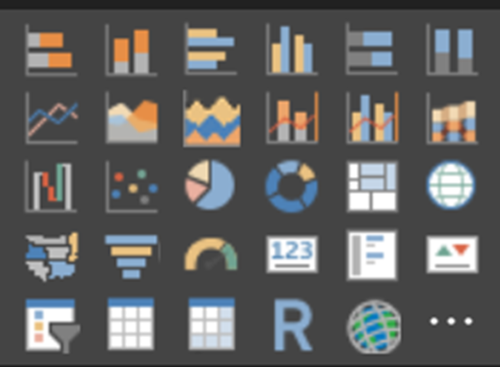
The following types of visualizations are available in Power BI
Power BI Service
Power BI Service is the cloud-based service of Power BI that let’s users publish their reports, dashboards and datasets which were created using Power BI desktop to the cloud.
To follow instructions in this tutorial, you should install Power BI desktop
System Requirements
The following System requirements are needed for successful installation of Power BI desktop.
Operating System:
Windows 10, Windows 7, Windows 8, Windows 8.1, Windows Server 2008 R2, Windows Server 2012, Windows Server 2012 R2
RAM: At least 1 GB
Browser: Internet Explorer version 10 or greater
Microsoft Power BI Desktop is available for 32-bit (x86) and 64-bit (x64) platforms. Check your operating system configuration before installing.
Installing Power BI desktop
Please follow the installation steps below to install Power BI desktop:
To install Power BI desktop, follow the link below,
https://powerbi.microsoft.com/en-us/downloads/
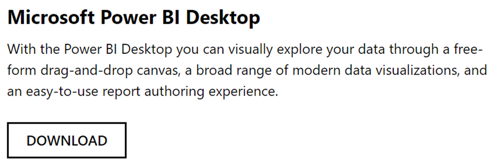
You will see several options, select the one show below and hit DOWNLOAD.
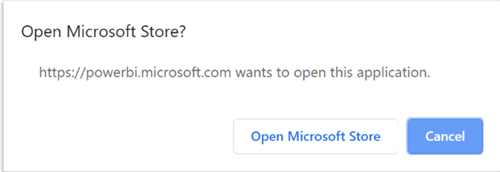
In the next screen, select Open Microsoft Store.
On the next screen hit Install
It will prompt you to sign in. If you don’t have an account with Microsoft, you can create one.
Once you are signed in, Microsoft Power BI desktop will download and run on your machine.
Once the download will complete, it will ask if you want to launch the application. Click on launch.
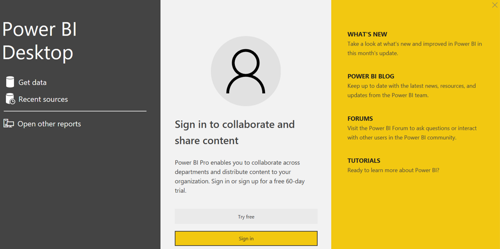
The Power BI welcome screen will be displayed. On this screen you will see What’s new on Power BI, blogs and tutorial
If you want to try the Power BI Pro, you can sign in or else just close this welcome screen by hitting X on the right most corner.
Power BI Welcome screen
Understanding of Power BI Desktop Interface
Power BI desktop provides range of functionalities to connect to data, edit query, create relationships and build reports. The following picture explains the Power BI desktop interface:
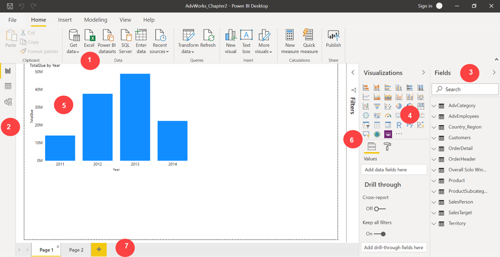
Depicted by the numbers, the different options available are as follows,
The menu or ribbon. The ribbon on Power BI desktop is contextual. We will see different options depending on which view you select from the left - Report, Data and Model. These views are explained in #2. Typically, it has four tabs - Home, Insert, Modeling and Help.
Home provides data related options such as connecting to data, edit query, creating new Measure and column. It also gives you the option to publish and share your visualizations.
Insert option is contextual and shows up when you have selected a Report View. It provides options for laying out your visualization such as showing gridlines, locking objects etc.
Modeling helps in creating complex data model, New Measure, roles etc..
Help provides help related to Power BI such as blogs and community.
These are 3 views - the first one is the Report view and selected by default when you launch Power BI desktop., second is Data and third is Relationship view. Hover and click on each to see what they display.
Report view displays visualization created using the available charts and fields on the right.
Example of a visualization created in Power BI desktop
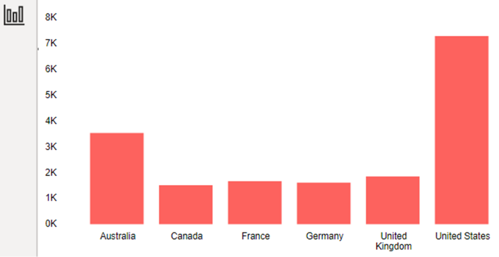
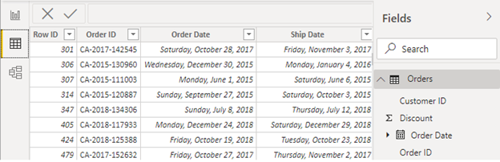
Data view, displays the data of the loaded queries/tables. You can select this table from the right under Fields.
Relationship view displays the relationship between the queries.
Fields. Display the queries or tables you have loaded in your application. It will display all the available tables and fields.
Visualizations. Power BI provide a wide range of Charts and Tables to display data. These visualizations show up when Report view (mentioned in 2) is selected from the left. To create a chart, click on a chart, it will show up on the canvas area. To display data on the chart, and select one or more Fields.
This is a canvas area, the charts, tables and other visualizations will be displayed in this section.
You can apply one or more filters to your visualizations.
Power BI allows you to create multipage reports. Reports are made up of one or more visualizations. You can create a new page by clicking on the + sign.
Power BI can connect and load data from wide range of data sources. The data modeling capabilities of Power BI are not restricted to the type of data source.
To check the available data sources in Power BI, launch Power BI desktop and select Get data from the Home tab
Connecting to Data in Power BI using Get Data
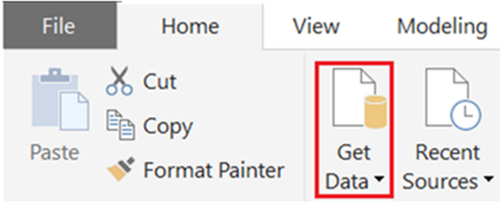
Get Data will display the list of commonly used data sources. Navigate all the way down in the list and click on More, it will show up different data sources
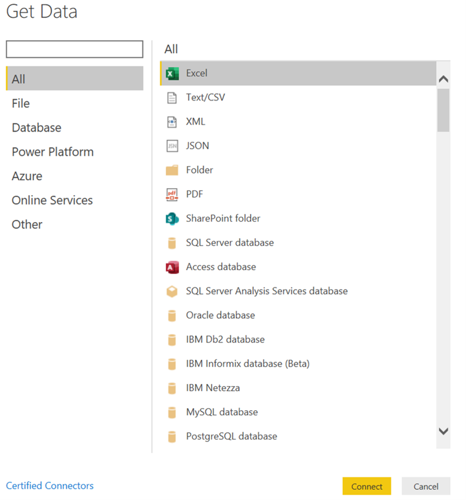
Connecting and Loading Orders.xlsx
In this section, we will load Orders table which is in xlsx format.
This table in enclosed with this tutorial. Download Orders.xlsx in your c:\ or location of your choice.
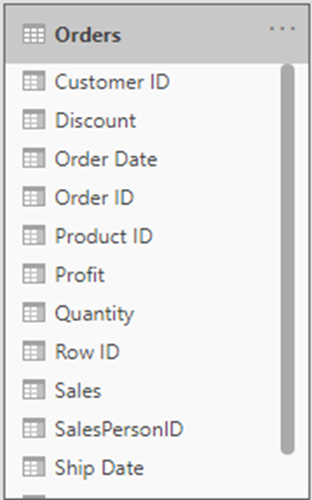
This table contains, details of an order, such as, Order ID, Order date, Shipment details, Sales, Profit, Quantity, Discounts amounts.
Steps:
Launch Power BI desktop and Cancel the welcome screen.
Save your application. In Power BI desktop, navigate to menu File and select Save As.
From the Home tab, select Get Data and then select Excel.
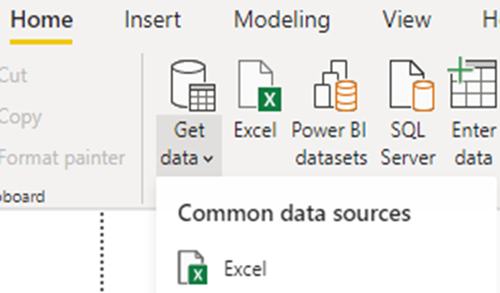
Navigate to the downloaded Orders.xlsx file on your laptop.
On the Navigator dialogue, select the sheet name Orders. It will display the preview of the data.
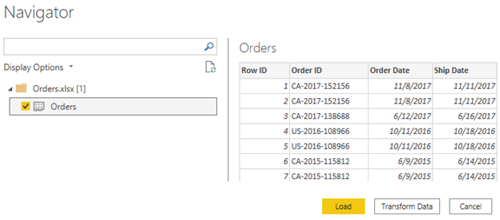
Select Load.
This will load the Orders table. You can verify by navigating to the Data view. It will display the table and fields loaded.
You can also navigate to Model view and it will display table/s in your data model. Right now you have only one table loaded.
Connecting and Loading Products.xlsx
In this section, we will load Products table which is in xlsx format.
This table in enclosed with this tutorial. Download Products.xlsx in your c:\ or location of your choice.
This table contains details of the Products.
Steps:
Follow the steps as described in the previous section when we loaded Orders.xlsx.
After you have successfully loaded Products table, navigate to Model view, you will see two tables, Orders and Products.
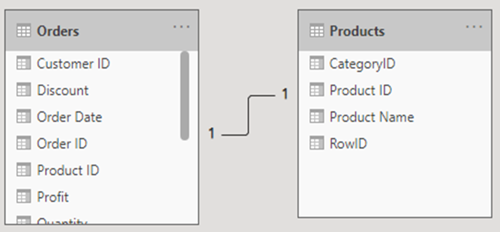
Relationship between the Tables
You will notice that Power BI has automatically deducted relationship between these tables.
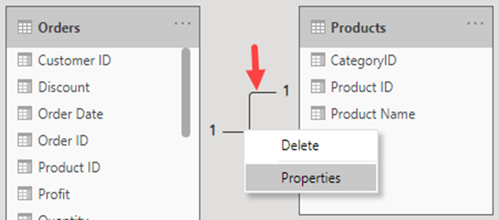
To explore this relationship, right-click on the relationship connector and select properties
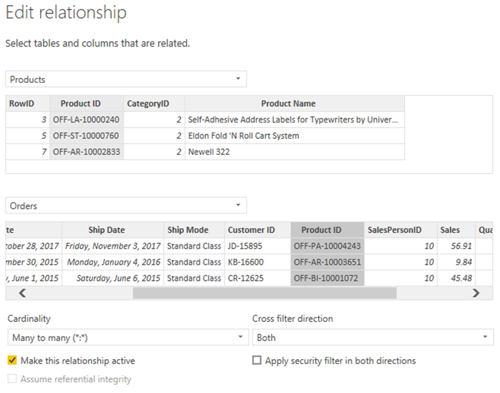
In the next Edit Relationship screen, you will see that Power BI has created/deducted a relationship based on RowID column of the two tables.
This is incorrect as we want the relationship to occur based on the Product ID column.
To get the correct relationship, select Product ID column in both the tables.
This will fix the relationship between the two tables. Based on the data in tables, Power BI suggest a Many to Many relationship.
If you feel this is incorrect, you can always change it.
Creating new Relationships
In the previous section, we have fixed an auto-detected relationship. In case, Power BI fails to auto-detect relationship between two tables, you can create a new relationship.
To create a new relationship, navigate to Data view, and from Table Tools tab in the ribbon, select Manage relationships.
In the Manage relationships screen, select New (as shown below)
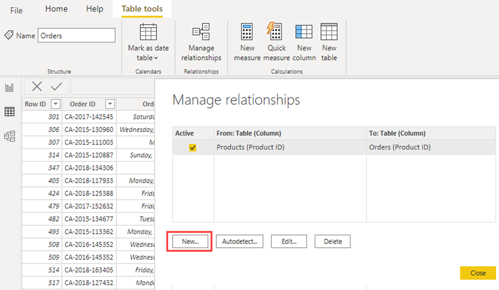
Right now, we have loaded only two tables. But if you have more tables and you want to create relationships between them, you can do so using Manage relationships.
In the previous chapter, we loaded to data in Power BI desktop. In this chapter, we will create visualizations using that data.
Power BI report view contains multiple pages of reports. Each page can contain one or more visualizations.
In the report view, you can see that Power BI provides a rich set of visualizations.
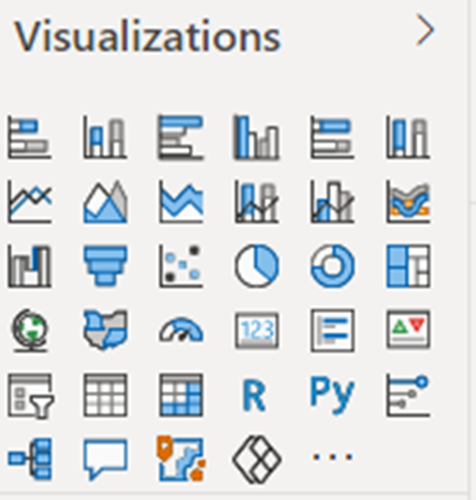
To create a visualization, navigate to Report view, select a visualization of your choice and select fields.
Creating a Bar chart
Follow below steps to create a Bar chart
Steps:
In Power BI desktop, navigate to Report view and from under Visualizations, select a bar chart. It is the second in the list of visualizations
On the canvas you will see a placeholder of the chart.
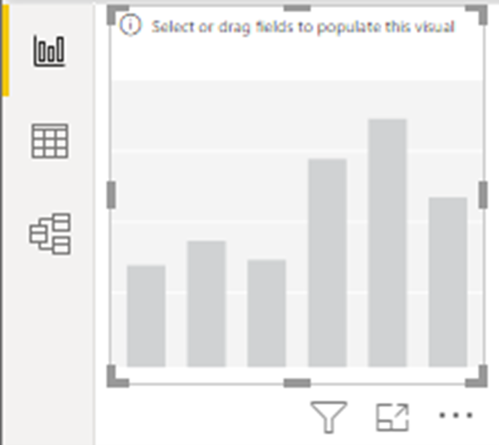
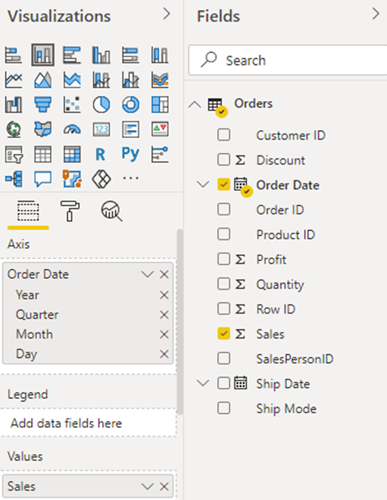
From the Fields on the right, select Order Date and drag it to Axis. Since this is a date datatype field, Power BI has automatically created a hierarchy for you – Year, Quarter, Month and Day.
Similarly, select Sales and drag it to Value.
This will create a bar chart, with Years on x-axis and Sales on the Y-axis. It shows Sales in each of the Years.
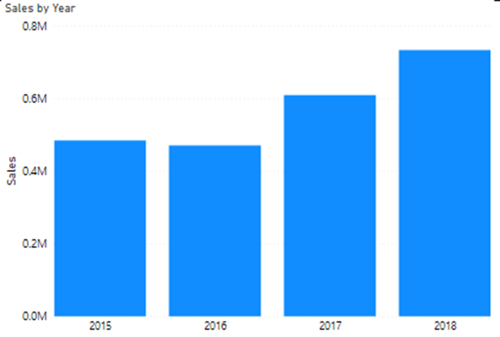
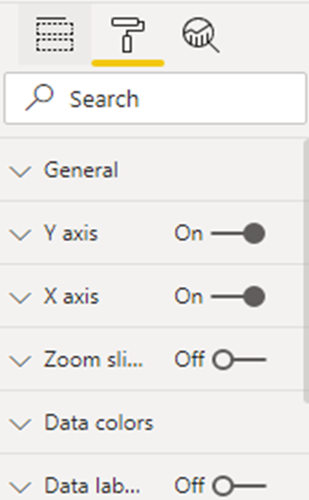
You can provide formatting to your chart, using the roller pin icon.
When you create a chart/visual using the fields, Power BI automatically create filters for you.
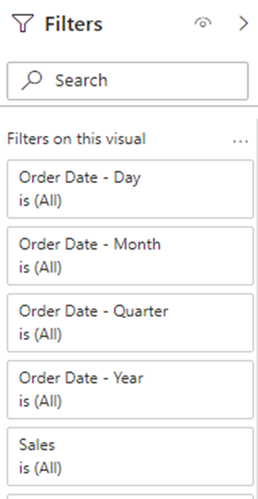
There are different kind of filters such as Visual level filters or Page level filters.
Hope this tutorial provided you a good starting point in becoming a Power BI professional.
For detailed instructor-led training, please contact us.

Introduction to Power BI
Installing Power BI Desktop
Connecting with Data
Creating Visualization
Power BI is an essential tool for anyone looking to build a career in data analytics and business intelligence. Since organizations today depend on data-driven insights, Power BI skills are valuable across many industries. This introductory course will give you a brief overview of Power BI, including connecting to data sources, transforming data, and creating interactive dashboards and visualizations. So that you can begin your journey into business intelligence and data reporting.