
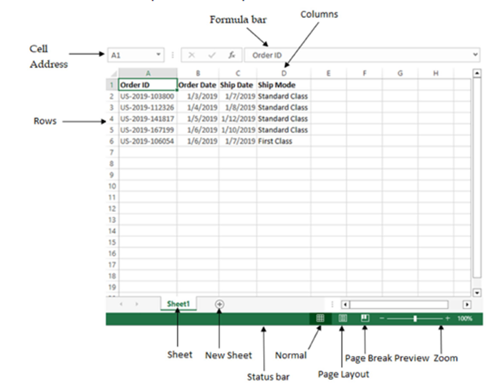
Familiarizing yourself with the Excel interface is crucial for efficient use. Excel is organized into:
Workbooks: These are the main files you work with in Excel, saved with an .xlsx extension.
Worksheets: Individual tabs within a workbook that contain grids of cells, allowing you to organize and analyze your data separately.
You can quickly open a new workbook using the shortcut Ctrl + N. By mastering the layout of workbooks and worksheets, you can navigate Excel more effectively and streamline your workflow.

Understanding the ribbon
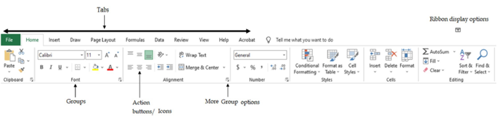
The Microsoft Excel ribbon enables users to execute commands to perform desired tasks. It is divided into the following:
Tabs: The Ribbon consists of various tabs such as File, Home, Insert etc.
Groups: Each tab contains multiple Groups which are sets of related commands.
Action buttons: Groups contain action buttons/icons to execute a command.
More Group options: A small downward arrow at the bottom right of each group launches more options provided in the group.

Proper data entry is crucial for effective analysis in Excel. Ensuring your data is entered correctly and formatted appropriately will not only improve readability but also enhance your ability to analyze the data effectively.
Entering Data
When working with Excel, you can input various types of data:
Text: Enter any alphanumeric characters directly into a cell. For instance, you can input names or labels.
Numbers: Input numerical values, which can be used in calculations. Ensure you enter them without any additional characters (like commas or dollar signs) unless you want them formatted as such.
Dates: Excel recognizes dates when entered in standard formats, such as MM/DD/YYYY or DD/MM/YYYY, depending on your regional settings.


Exercise: Create a workbook and enter the data shown in the image. Try to add more data (atleast 10 rows) for good hands on experience. You can also use the provided Orders.xls (available in the Materials Tab) for reference.
Formatting
Formatting is essential for enhancing the presentation of your data. Properly formatted cells can make your spreadsheet more readable and visually appealing. You can adjust various aspects of cell formatting:
Font Styles: Change the font type, size, and style (bold, italic, underline) to highlight important data or differentiate sections. To do this, select the cell or range of cells, then go to Home > Font. You can also use shortcuts: Ctrl + B for bold, Ctrl + I for italic, and Ctrl + U for underline.
Colors: Use fill colors to highlight cells or change the text color to make it stand out. Select the cell(s) you want to format, then navigate to Home > Font or Home > Fill Color. You can choose from various color options to enhance visibility.
Borders: Add borders to cells to create a structured appearance, which is especially helpful when presenting data in tables. To add borders, select the desired cells, then go to Home > Borders. You can choose different border styles to customize your layout.
Formatting Numbers in Excel
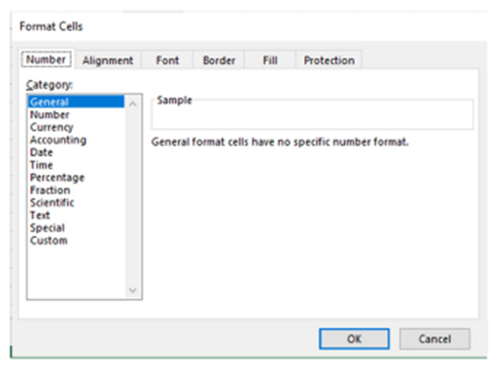
The Number tab in the Format Cells dialog is essential for controlling how numerical data is displayed in your Excel worksheets. Proper number formatting enhances readability and ensures that your data conveys the intended meaning. Here's how to use it effectively:
Accessing Number Formatting: To access the Format Cells dialog, right-click on a cell or range of cells and select Format Cells, or press Ctrl + 1 to open the dialog directly. Then, click on the Number tab.
Categories: The Number tab offers various formatting categories:
General: The default format, suitable for most data. Numbers are displayed without any specific formatting.
Number: Allows you to specify the number of decimal places, use thousand separators, and decide how negative numbers are displayed (e.g., in red, with parentheses, etc.).
Currency: Displays numbers as currency, with options for selecting currency symbols and decimal places. This is ideal for financial data.
Accounting: Similar to Currency but aligns currency symbols and decimal points in a column, providing a cleaner look for financial reports.
Percentage: Converts the number to a percentage format, multiplying it by 100 and adding a percentage sign. You can also set the number of decimal places.
Fraction: Displays numbers as fractions. You can choose how detailed the fraction should be (e.g., halves, quarters).
Scientific: Formats numbers in exponential notation, which is useful for very large or small numbers.
Custom Formats: If the predefined formats do not meet your needs, you can create a Custom Format. In the Number tab, select Custom and enter your format code (e.g., “0.00” for two decimal places).

Exercise. Perform following formatting options using the provided Orders.xls (in the Materials Tab).
Make the Header row distinct by providing color and borders.
Create a new row to group the header columns.
Format the Sales, Discount, and Profit columns. Display Sales and Profit prefixed with a $ sign and two places of decimals). Display Discount as a percentage.
Conditional Formatting
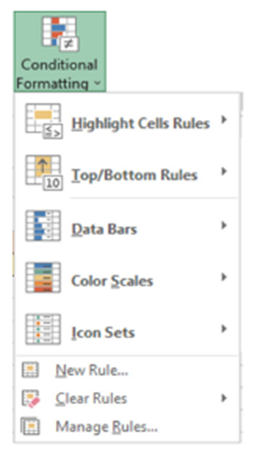
Conditional formatting in Excel is a powerful feature that allows you to highlight important data points, making trends and insights more visible.
Applying Rules: To apply conditional formatting, select your data and navigate to Home > Conditional Formatting. You can also use the shortcut Alt + H + L to open the conditional formatting menu. From here, choose various rules, such as color scales or icon sets, to visualize trends and identify significant values. This helps in quickly spotting outliers or patterns in your data.

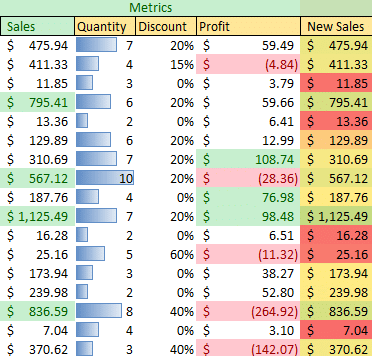
Exercise: Perform following formatting options in the worksheet data. Use the provided Orders.xls (in the Materials Tab)
Display the Sales amount in Green where Sales is greater than $500.
Display negative Profits in red.
Display Top 20% of Profit in Green.
Display data bars to display higher and lower quantities sold.
A few rows of output of the above exercise is shown in the figure below.
Basic Data Manipulation
Excel simplifies data management with various functions that make handling information efficient and straightforward.
Copying, Cutting, and Pasting: You can easily manage your data using shortcuts. To copy data, use Ctrl + C; to cut data, use Ctrl + X; and to paste it, use Ctrl + V. This allows for quick manipulation of data across your workbook.
Auto-Filling: The Fill Handle is a small square at the bottom right corner of a selected cell. Click and drag this handle to auto-fill data series, such as dates, numbers, or even formulas. This feature saves time by automatically generating patterns based on the initial data.
Tip: For more specialized pasting options, you can use Ctrl + Alt + V to open the Paste Special dialog, allowing you to choose how to paste your copied data.
Sorting and Filtering Data
Efficiently managing and analyzing your data is crucial in Excel, and sorting and filtering are two powerful features that can help you achieve this.
Sorting Data: To sort your data, first select the data range you want to organize. Then, navigate to Data > Sort or use the sort buttons in the ribbon. You can choose to sort your data in ascending or descending order, making it easier to analyze trends or find specific information quickly.
Filtering Data: To filter your data, click on the filter icon located in the header row of your dataset. This allows you to apply filters and view specific data sets based on your criteria, enabling focused analysis without altering the original data. For quick access to filter options, you can press Alt + D + F + F. This shortcut toggles the filter on and off, allowing you to refine your data view rapidly.

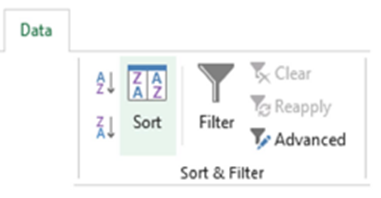
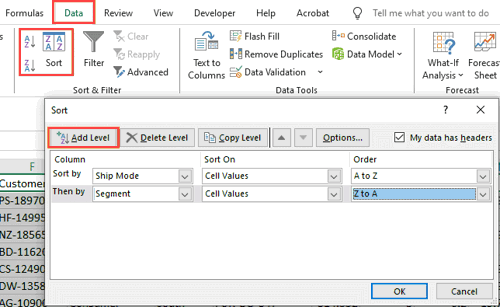
Exercise. Using the worksheet Orders.xls( provided in the Materials tab), sort the data first by A to Z of Ship mode, then by Segment (Z to A).
The steps for sorting are shown in the figure below:
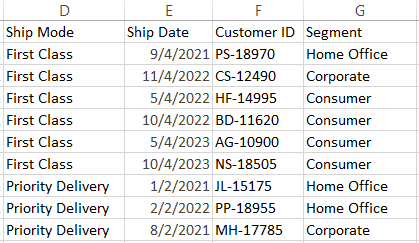
Few rows of the output after sorting are shown below. Observe how Ship Mode and Segment are sorted.
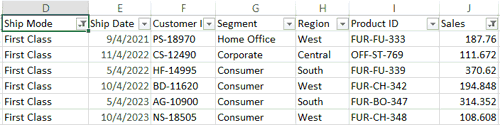
Exercise. In the worksheet Orders.xls( provided in the Materials tab), filter the data as mentioned below -Ship Mode as First class and then look for the data where Sales > 100.
To filter the data, click on Sort & Filter on the Ribbon. Filter Ship Mode as First Class using the Filter drop-down on Ship Mode column.
To filter the rows for Sales > 100, follow the steps shown in the figure below.

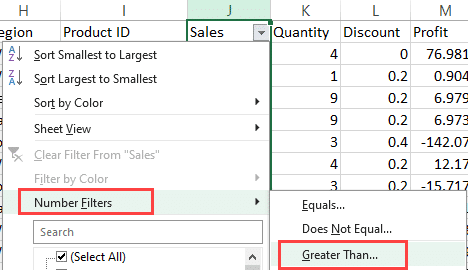
Specify the condition for Greater Than 100 as shown in the figure below:
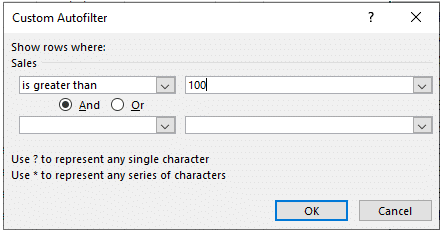
Output displaying data where Ship Mode is “First Class” and Sales greater than 100.
Excel is a powerful tool that allows you to perform calculations effortlessly, making it invaluable for data analysis and reporting. Understanding how to use both basic formulas and common functions will enable you to manipulate and analyze your data effectively.
Essential Formulas
Starting with basic arithmetic formulas is essential for beginners. Here are the fundamental operations you can perform:
Addition: To add two numbers in cells A1 and A2, use the formula:
=A1 + A2
This formula will sum the values in those two cells.
Subtraction: To subtract the value in A2 from A1, use:
=A1 − A2
This will give you the difference between the two numbers.
Multiplication: To multiply the values in A1 and A2, input:
=A1 * A2
This will return the product of the two numbers.
Division: To divide the value in A1 by A2, use:
=A1 / A2
This formula calculates the quotient of the two cells.
Common Functions
Beyond basic arithmetic, Excel offers a variety of functions that simplify complex calculations. Here are some essential functions you should learn:
SUM: To quickly add a range of numbers, use:
=SUM(A1:A10)
This function sums all the values from A1 to A10. It’s particularly useful for large datasets where manually adding numbers would be impractical.
AVERAGE: To find the average value of a range, input:
=AVERAGE(A1:A10)
This function calculates the mean of the numbers in the specified range, providing insights into overall performance or trends.
MIN: To identify the smallest number in a range, use:
=MIN(A1:A10)
This function returns the lowest value, which can be useful in scenarios such as performance evaluations.
MAX: To find the largest number in a range, input:
=MAX(A1:A10)
This function identifies the highest value, helping you quickly assess the maximum performance or result.
Using Functions
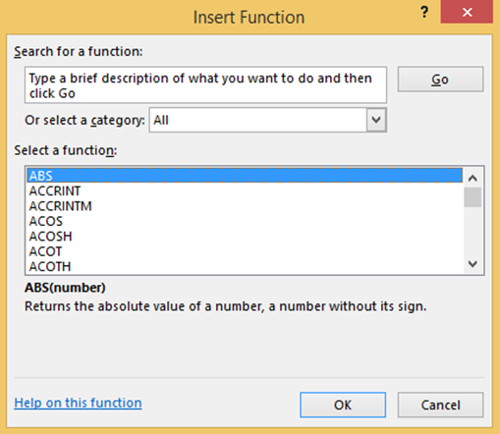
When you want to insert a function into a cell, you can type it directly or use Excel's built-in function library. For a quick way to insert functions, press Shift + F3. This will bring up the "Insert Function" dialog, where you can search for functions by name or browse categories, making it easier to find the right function for your needs

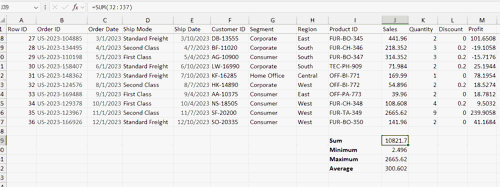
Exercise: In the worksheet Orders.xls( provided in the Materials tab), use SUM, MIN, MAX, and AVERAGE functions to find the sum, minimum, maximum, and average Sales.
To complete this exercise, go to cell J39(below the Sales values), and follow the steps provided in the section "Using Functions".
The output will be as shown in the figure below.
Tables in Excel are a powerful tool that enhance data organization and readability, making it easier to analyze and present information effectively.
Creating Tables: To create a table, select your data range or required number of cells and navigate to Insert > Table or simply use the shortcut Ctrl + T. Ensure that the "My table has headers" checkbox is checked if your data includes header rows. This will allow Excel to recognize the headers for sorting and filtering purposes.

Formatting Tables: Once your table is created, you can improve its visual appeal by using table styles available in the Table Design tab. These styles allow you to apply consistent formatting, such as alternating row colors and bold headers, making your data more readable.
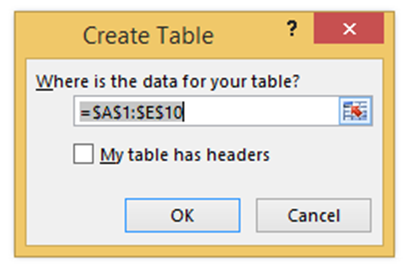
Figure 1.8: Formatting Tables
Exercise: Create a table and insert the same data from the workbook.
Visualizing data is essential for understanding trends and insights within your datasets. Excel offers powerful charting tools to help you achieve this.
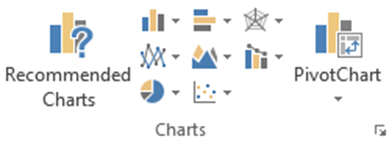
Creating Charts: To create a chart, select your data and navigate to Insert > Chart or use the shortcut Alt + F1 to insert a recommended chart directly. You can choose from various options like bar, line, or pie charts, depending on the type of data you want to represent. This visual representation makes it easier to identify patterns and trends at a glance.

Customizing Charts: After creating a chart, you can modify its elements for clarity. Adjust chart titles, labels, and legends to ensure that your audience can easily understand the information being presented. Customizing your charts enhances their effectiveness and improves communication of your data insights.


Exercise: Create a chart of your choice using the workbook data.
Setting up your worksheet for printing is essential to ensure a professional look and presentation of your data.
Setting Print Areas: To define which cells you want to print, highlight the desired range, then navigate to Page Layout > Print Area > Set Print Area. This ensures that only the selected data will be printed, allowing for a cleaner output.
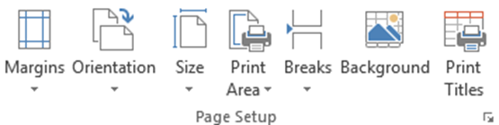
Adjusting Page Layout: To modify the overall appearance of your printed document, adjust margins, orientation, and size by going to Page Layout > Page Setup. This helps in fitting your content correctly on the page and enhances readability.

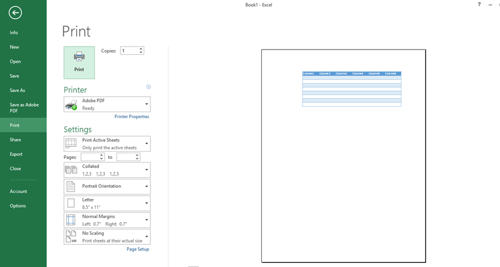
Print Preview: To see how your document will look when printed, use the shortcut Ctrl + P to open the print preview or you can access print preview by clicking on the File tab and then selecting Print from the menu. This feature allows you to check for formatting issues, adjust settings, and ensure everything appears as intended before finalizing your print job.

Understanding how to save and share your workbooks is crucial for effective collaboration and data management in Excel.
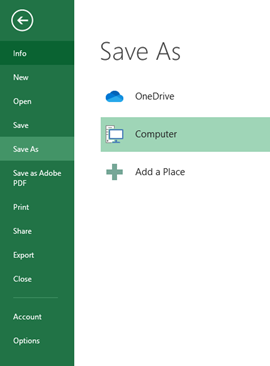
Saving Workbooks: To save your work, simply press Ctrl + S. This will update your current workbook. If you want to save in a different format or under a new name, navigate to File > Save As, or use the shortcut F12. This allows you to choose various formats such as .xlsx, .xls, or .pdf, depending on your needs.

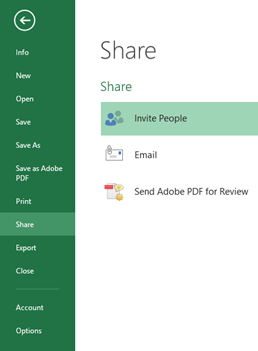
Sharing Options: Excel offers several ways to share your workbooks. You can share files via email directly from Excel or use cloud services like OneDrive or SharePoint for easier collaboration. This enables multiple users to access and edit the document simultaneously, enhancing teamwork.

Even experienced users can encounter issues while working with Excel. Knowing how to address these problems is essential for maintaining productivity.
Common Errors: Familiarize yourself with common Excel errors, such as #DIV/0!, which indicates division by zero, and #VALUE!, which signifies an invalid argument in a formula. Understanding these errors will help you troubleshoot and correct issues more efficiently.
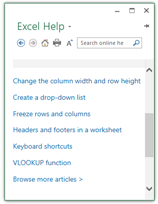
Help Resources: When you run into problems, take advantage of Excel's built-in help feature by pressing F1. This will open the help menu, providing access to guides and tutorials. Additionally, you can search online resources, including forums and instructional videos, for solutions to specific problems you may encounter.


In this introductory course, you will learn:
Introduction to Excel
Data Entry and Formatting
Data Manipulation, Sorting and Filtering Data
Sorting and Filtering Data
Basic Excel Functions and Formulas
Creating and Formatting Tables
Chart Creation
Printing and Page Setup
Saving and Sharing Workbooks
Basic Troubleshooting and Help Resources
Microsoft Excel is an essential tool for data management, analysis, and visualization. Whether you're a student, a professional, or just looking to enhance your skills, mastering Excel can significantly improve your productivity. In this course, you can explore key topics designed for beginners to help you get started with Excel.
Use the attached Excel workbook to complete the exercises (Click on the Resources section in the left side bar)
For more advanced learnings visit our blogs