
In today's digital world, cloud computing has revolutionized how we store, access, and manage data. It allows you to store and use data and apps online instead of on your computer. You can access storage, software, and processing power without needing any physical equipment. This means you can reach your information from anywhere with internet access and easily change your resources, paying only for what you actually use.
Types of Cloud Services
There are different types of cloud services, like Infrastructure as a Service (IaaS), Platform as a Service (PaaS), and Software as a Service (SaaS). Let’s discuss them in detail:
Infrastructure as a Service (IaaS)
Infrastructure as a Service (IaaS) is a way to rent virtual computing resources over the internet. Instead of buying physical servers and storage devices, you can use the infrastructure provided by cloud companies. This means you can create virtual machines, which are like computers running in the cloud, and use them to host websites or run applications.
For example, if a small business needs to set up a website, they can use an IaaS provider like Amazon Web Services (AWS) or Microsoft Azure. They can quickly setup a virtual server to host their website without buying any hardware. If the website gets more traffic and needs more power, they can easily increase the resources, such as adding more storage or processing power. They only pay for what they use, which makes it cost-effective.
Platform as a Service (PaaS)
Platform as a Service (PaaS) offers a complete platform for developers to build, run, and manage applications without dealing with the underlying hardware. PaaS provides the tools and services needed to develop software, including coding environments, databases, and middleware, all hosted in the cloud.
Imagine a company wants to create a new mobile app. Instead of setting up servers and databases themselves, they can use a PaaS provider like Google App Engine or Heroku. These platforms give developers everything they need to write and test their code. They can focus on building the app without worrying about server maintenance. When they’re ready, they simply deploy their app on the platform, and it becomes accessible to users right away. This saves time and simplifies the development process.
Software as a Service (SaaS)
Software as a Service (SaaS) is a way to access software applications over the internet without needing to install them on your device. Instead of purchasing software and installing it on your computer, you subscribe to the service and use it online through a web browser.
For example, think of Google Workspace (formerly G Suite) or Microsoft 365. These platforms offer tools like Google Docs, Google Sheets, and Microsoft Word. Users can create documents, spreadsheets, and presentations online and access them from any device with internet access. Because everything is stored in the cloud, you can collaborate with others in real time. You don’t need to worry about software updates or installations; the provider takes care of all that for you.
In summary,
IaaS is like renting a virtual server and storage when you need it.
PaaS provides a ready-to-use platform for developers to build apps without managing hardware.
SaaS gives you software you can use online without installing anything.
Benefits of Cloud Computing
Cost Efficiency: Cloud computing helps save money because you don’t need to buy physical hardware like servers and storage devices. Instead, you pay only for what you use. This means you can avoid the high costs of purchasing and maintaining equipment, allowing you to allocate your budget to other important areas of your business.
Scalability: One of the biggest advantages of cloud computing is the ability to easily adjust your resources. If your business grows and you need more storage or computing power, you can quickly add those resources. Conversely, if you find you’re using less than you expected, you can reduce your resources to save money. This flexibility allows you to respond to changing needs without hassle.
Accessibility: With cloud computing, you can access your services and data from anywhere as long as you have an internet connection. This means you can work from home, at a coffee shop, or while traveling. It also makes collaboration easier since multiple people can access the same files and applications in real time, regardless of their location.
Now that you understand cloud computing, let’s dive into Microsoft Azure. Microsoft Azure is a cloud platform that helps businesses and developers create, run, and manage applications online. It offers various services, such as virtual machines for computing, secure storage for data, and tools for networking and analytics. Azure also has features for building smart applications using artificial intelligence and includes strong security measures to protect your information. It supports many programming languages and can work with different tools, making it flexible for various needs.
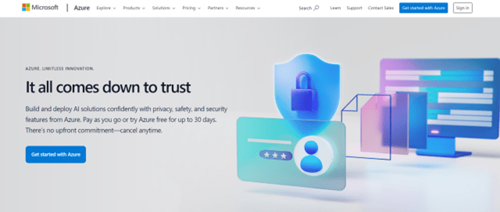

For detail Introduction on Microsoft Azure visit https://ohiocomputeracademy.com/introduction-to-microsoft-azure-a-beginners-guide/
Creating Your Azure Account
Go to the Azure Website: Start by visiting the Microsoft Azure homepage.
Select “Start Free”: Look for and click on the “Start free” button. Microsoft typically provides free credits to help you explore their services.
Sign In or Create a Microsoft Account: If you already have a Microsoft account (like one for Outlook or Xbox), use that to log in. If not, you’ll need to create a new account by entering your email address and setting a password.
Enter Personal Information: Fill in the required details, such as your name, country, and phone number. This information is used for account verification.
Provide Payment Information: You’ll need to add payment details, but rest assured—Microsoft usually won’t charge you unless you exceed the free credits.
Verify Your Identity: You may be asked to confirm your identity via a text message or email.
Agree to Terms and Conditions: Read through the terms of service and accept them to continue.
Start Exploring Azure: Once your account is created, you can access the Azure portal, where you can start exploring various services, create resources, and utilize your free credits.
For detailed steps on creating a Microsoft Azure account visit: -------------------------
Navigating the Azure Portal
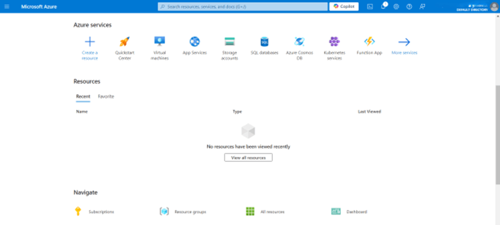

The Azure portal serves as your central hub for managing resources. The Key features include:
Dashboard: You can customize the Azure dashboard to show the specific information and metrics that are most important to you. This lets you add sections for different resources like virtual machines and databases, making it easy to monitor their status and performance. You can also include charts to visualize data, such as usage trends and cost overviews, creating a personalized view of your Azure environment. By arranging these items to fit your needs, you can easily keep track of important information without having to navigate through multiple menus, which helps you manage Azure services more efficiently.
Resource Groups: These help you organize your resources into groups that make sense together. For example, if you have a website and its related database and storage, you can put all of them in the same group. This way, it’s easier to manage and monitor them as a unit, rather than handling each one separately.
Marketplace: The Azure Marketplace is like an app store for Azure. Here, you can find a variety of third-party applications and services that you can add to your Azure setup. This could include tools for databases, virtual machines, or even AI services, helping you expand what you can do in the cloud.
Once you have your Azure account and know how to use the portal, you can start exploring all the great features and services Azure has to offer! Whether you want to create apps, analyze data, or try out new technologies, the portal provides the tools you need to do it all.
Azure provides a wide range of services, including computing, storage, and AI tools. Understanding these core offerings is essential to effectively utilize the platform, as it helps you choose the right resources for your needs and manage your projects more efficiently.
Compute Services
Azure provides compute services to help you run applications in the cloud. You can use Azure Virtual Machines for scalable servers, Azure App Services for easy web hosting, and Azure Functions for running code without managing servers. Let’s discuss them in detail
Azure Virtual Machines (VMs Azure Virtual Machines provide flexible computing power that you can easily scale up or down as needed. Essentially, a VM is like a computer that runs in the cloud instead of on your physical hardware. You can use VMs for various purposes, such as hosting applications, running tests, or creating virtual desktops. For instance, a software company needing to test a new application can create multiple virtual machines in Azure to run their tests. If they require more computing power during peak times, they can quickly add more VMs and remove them once testing is complete, saving costs.
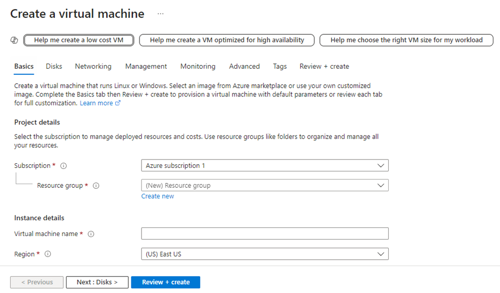
Figure 1.3: Creating Virtual machine
Azure App Services: Azure App Services is a Platform as a Service (PaaS) that allows you to host web applications, RESTful APIs, and mobile backends. This service takes care of much of the underlying infrastructure, so you can focus on developing your app without worrying about managing servers. For example, if a business wants to launch a new website or mobile app, they can use Azure App Services to host it. They can easily deploy their code, and Azure will handle scaling, security, and updates, allowing developers to spend more time building features.
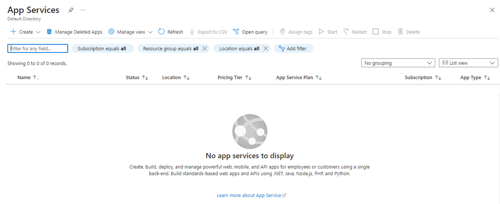
 Figure 1.4: Azure App Services
Azure Functions: Azure Functions is a serverless computing service that lets you run code in response to specific events without managing any servers. You only pay for the computing time you use, which can be very cost-effective. Azure Functions can be triggered by various events, such as changes in data, HTTP requests, or scheduled times. For instance, an e-commerce website might create an Azure Function that automatically runs whenever a customer makes a purchase, sending an email notification without the need for ongoing server management.
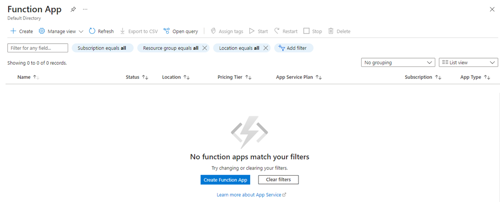
 Figure 1.5: Azure Function App
Storage Services
Azure offers a variety of storage solutions to help you manage different types of data in the cloud. They are Azure Blob Storage for unstructured data, Azure File Storage for easy file sharing, and Azure Table Storage for structured data. Let’s discuss them in detail
Azure Blob Storage: Azure Blob Storage is designed for storing unstructured data like images, videos, and large files. It's perfect for applications that need to store and retrieve vast amounts of unstructured data efficiently. For example, a media company can use Blob Storage to store all its video files, making them easily accessible for streaming or editing.
Azure File Storage: Azure File Storage provides file shares that can be accessed using the SMB (Server Message Block) protocol. This means you can share files across different machines in a way that feels familiar, like using a traditional file server. For instance, a team working on a project can use Azure File Storage to share documents and collaborate easily, just as they would with a local file server.
Azure Table Storage: Azure Table Storage is a NoSQL database that holds structured data. It allows you to store large amounts of data in a way that can be easily queried, making it suitable for applications that require fast access to structured information. For example, a web application might use Table Storage to store user profiles, enabling quick lookups based on user IDs or other attributes.
Networking Services
Azure provides essential networking services to help you securely connect and manage your cloud resources. These include Azure Virtual Network, Azure Load Balancer, and Azure VPN Gateway, which work together to enhance communication, performance, and security in your Azure environment. Let’s discuss them in detail:
Azure Virtual Network (VNet): Azure Virtual Network (VNet) lets you create a private network in the cloud, enabling secure communication between your Azure resources. For example, suppose you have a web app hosted on a virtual machine (VM) that needs to access a database also hosted in Azure. By using VNet, you ensure that the VM and the database can communicate with each other securely without exposing any data to the public internet. This way, sensitive information stays protected within your private network.
Azure Load Balancer: Azure Load Balancer helps manage traffic by distributing it across multiple servers. This is essential for maintaining high availability and performance. For example, if you run an online store and suddenly experience high traffic from customers during a sale, the Load Balancer can evenly distribute incoming traffic to several servers. If one server becomes too busy or even goes down, the Load Balancer redirects traffic to the remaining servers, ensuring that customers can still access your site without any interruptions. This setup enhances the user experience and keeps your website running smoothly.
Azure VPN Gateway: Azure VPN Gateway allows you to securely connect your office network to Azure, the cloud platform, making it beneficial for businesses that want to use cloud services along with their local resources. For example, if your company stores important customer data in a local database, you can set up VPN Gateway to create a secure connection to Azure, ensuring that any data transferred between your office and the cloud is protected. This secure link enables employees to easily access cloud services and tools, just as they would if they were working in the office. They can collaborate on projects, share files, and utilize cloud applications while keeping sensitive data safe. This setup combines the strengths of both local and cloud resources, providing flexibility and enhancing the capabilities of the business.
Effective management and monitoring are crucial for optimizing your Azure resources. This includes using tools like Azure Resource Manager for organizing resources, command-line interfaces like Azure CLI and PowerShell for efficient management, Azure Monitor to track application performance, and cost management features to keep spending under control. Let’s discuss these tools in detail.
Azure Resource Manager (ARM)
Azure Resource Manager (ARM) is a service that helps you deploy, manage, and organize your Azure resources effectively. It allows you to create "resource groups," which act like folders for related resources, making it easier to manage and locate them. For instance, if you have a web application, you might group together the virtual machine, database, and storage accounts needed for that app. ARM also includes ARM templates, which are JSON files that describe the resources you want to create and their configurations. Using ARM templates lets you automate the setup of your resources, which saves time and keeps everything consistent, especially if you need to create the same environment several times for testing or development. These templates also help manage dependencies, ensuring that resources are created in the right order—like setting up a database before launching an app that needs it. Overall, Azure Resource Manager makes managing your cloud resources easier and helps reduce mistakes.
Using Azure CLI and PowerShell
Azure CLI and PowerShell are both command-line tools that make it easier to manage your Azure resources, each with its own advantages.
Azure CLI is a cross-platform tool, which means you can use it on Windows, macOS, and Linux. It’s great for users who like working in a command-line environment. For example, if you want to create a virtual machine, you can just type a command like az vm create along with the necessary details. This makes it quick and easy to perform tasks without having to click through a graphical interface. The commands are also straightforward, so even if you’re not a coding expert, you can still use it effectively.
On the other hand, PowerShell is for Windows users, making it a good fit for those familiar with Windows tools. It offers more advanced scripting and automation options. For instance, if you want to see a list of all your Azure virtual machines, you can use the command Get-AzVM. PowerShell's scripting abilities allow you to automate tasks, like setting up multiple virtual machines at once, which can save you a lot of time.
Monitoring with Azure Monitor
Azure Monitor is a powerful tool that tracks the performance and health of your applications and services in real time. It gathers data from various sources, such as virtual machines, databases, and web apps, giving you a comprehensive view of how everything is functioning. For instance, if you run an e-commerce website, Azure Monitor can show you how quickly your site is loading, the number of visitors, and any errors during transactions. If it detects that response times are slowing down or that there are checkout errors, it can send you alerts. This allows you to address issues—like scaling up resources or fixing bugs—before customers notice, ensuring a smooth shopping experience. Setting up alerts is simple, as you can configure them based on specific metrics like CPU usage or response times, so you receive notifications via email or text when thresholds are crossed.
Cost Management
Azure provides tools to help you monitor and control your spending effectively. One key feature is Cost Management + Billing, which allows you to analyze your spending patterns and track costs across your resources. With this tool, you can easily see where your money is going and identify any unexpected expenses. Additionally, you can set budgets to keep your costs in check. For example, if you have a monthly budget for a specific project, you can configure alerts to notify you when you're nearing your budget limit. This proactive approach helps you stay on top of your expenses, ensuring that you use your Azure resources efficiently without overspending.
Azure offers several database services to help you manage your data effectively. Azure SQL Database is a fully managed option for structured data, making it easy to use for applications. Azure Cosmos DB is great for unstructured data and can be accessed globally, providing fast performance. Azure Database for MySQL and PostgreSQL gives you managed versions of these popular databases, so you can use their features without worrying about maintenance. Let’s discuss them in detail.
Azure SQL Database
Azure SQL Database is a fully managed relational database service that simplifies the storage and management of structured data, making it perfect for various applications. For example, if you run an online bookstore, you can quickly set up Azure SQL Database to keep track of your books, customers, and orders. Since it’s fully managed, you don’t have to worry about backups or software updates; Azure handles all that for you. If your bookstore suddenly gains popularity and experiences a surge in traffic, Azure SQL Database can automatically scale up to accommodate the increased demand, ensuring your website runs smoothly. Plus, it offers robust security features to protect sensitive information like customer details and payment data, making it a reliable choice for businesses.
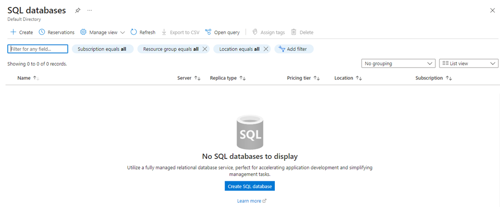
 Figure 1.6: Azure SQL Database
Azure Cosmos DB
Azure Cosmos DB is a globally distributed, multi-model database service that’s perfect for critical applications. It allows you to store and manage data in different formats, such as documents and key-value pairs, making it highly versatile. For instance, if you’re developing a mobile app that needs to handle user profiles and real-time data updates, Azure Cosmos DB can efficiently manage this diverse data. Because it’s globally distributed, your application can access data quickly from anywhere in the world, ensuring low latency and high performance. This makes Azure Cosmos DB an excellent choice for applications that require scalability and reliability, like social media platforms or online gaming, where performance and user experience are crucial.
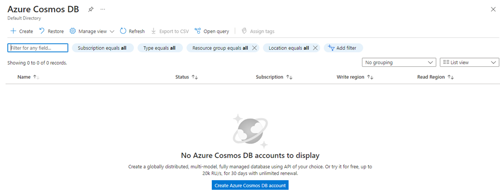
 Figure 1.7: Azure Cosmos DB
Azure Database for MySQL/PostgreSQL
Azure Database for MySQL and Azure Database for PostgreSQL are managed services that simplify database management by handling the technical tasks for you. For instance, if you're running a food delivery app, you can set up Azure Database for MySQL to store information about restaurants, menu items, and customer orders without worrying about the underlying infrastructure. These services provide built-in high availability, ensuring your database remains accessible even during server issues or maintenance, so customers can place orders anytime. Automated backups regularly save your data, allowing you to restore it easily if something goes wrong, like accidental deletion. Additionally, scalability allows you to quickly adjust resources in response to spikes in demand, such as during a big event, and scale back down when the rush is over. This way, you can focus on improving your app's features and user experience instead of managing database complexities.
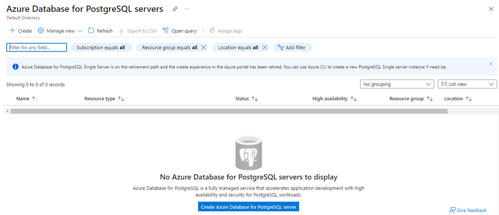
 Figure 1.8: Azure PostgreSQL DB
Streamlining deployment and automation is essential for efficient application delivery in Azure. This includes using Azure Resource Manager (ARM) templates to set up resources automatically, Azure DevOps for teamwork and project tracking, and CI/CD pipelines to automate building, testing, and deploying applications. Let’s discuss them in detail.
ARM Templates
ARM templates allow you to define the resources and services your applications need in a clear and structured way. For example, if you're creating a web application that requires a virtual machine, a database, and networking components, you can write an ARM template that specifies all these elements instead of setting them up manually through the Azure portal. This template includes details like the size of the virtual machine, the type of database, and the network settings. By using the ARM template, you can deploy all these resources at once with a single command, saving time and ensuring consistency across deployments. If you later need to replicate the same setup for testing or development, you can easily use the same template again. This infrastructure-as-code approach not only speeds up the process but also minimizes errors, making it easier to manage and scale your applications as needed.
Introduction to Azure DevOps
Azure DevOps is a comprehensive platform that provides tools for every stage of software development, helping teams plan, build, test, and deploy applications efficiently. For example, if you're working on a mobile app, you can start with Azure Boards to plan your project by creating tasks, assigning them to team members, and tracking progress. Once planning is complete, you can use Azure Repos to store and collaborate on code, allowing your team to access the latest version and easily revert changes if needed. During the testing phase, Azure Pipelines automates the building and testing of your application, running tests automatically whenever code changes are made, which helps catch issues early. Finally, Azure DevOps makes it easy to deploy your app to different environments, whether for staging or production, allowing you to quickly release updates and new features.
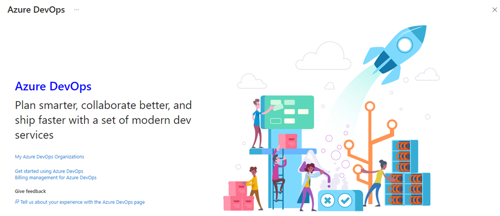
 Figure 1.9: Azure DevOps
CI/CD Pipelines
Implementing Continuous Integration and Continuous Deployment (CI/CD) helps automate the testing and deployment of your applications, making the process faster and more reliable. With CI, every time a developer makes changes to the code, those changes are automatically tested to ensure they work correctly. This means any issues can be identified and fixed early in the development cycle. Once the code passes all tests, CD takes over to automate the deployment process, pushing the new features or updates to production seamlessly. For example, if your team adds a new feature to a web application, CI/CD will run tests to confirm everything functions as expected before automatically deploying that feature to users. This approach not only speeds up delivery but also reduces the risk of errors, ensuring that new features are available to users quickly and reliably.
In this introductory course, you will learn:
Overview of Cloud Computing
Azure Account Creation and Portal Navigation
Core Services in Microsoft Azure
Azure Management and Monitoring
Azure Databases
Streamlining Deployment and Automation in Azure
Microsoft Azure is essential for anyone looking for a career in cloud computing. Since most organizations today use cloud technologies, it can be used in any industry. This course will give you a brief introduction about Microsoft Azure to kick start your cloud computing journey.