
Amazon Web Services (AWS) is a cloud computing platform provided by Amazon. Instead of using physical servers and storage devices, you can use AWS to host your applications, store your data, and manage your online resources from anywhere with an internet connection. It’s flexible, meaning you can adjust it to fit your needs, scalable, so it can grow as you grow, and reliable, which means it works well most of the time making it a popular choice for startups and enterprises.
Benefits of Cloud Computing
Cloud computing offers numerous advantages over traditional on-premises infrastructure:
Scalability: AWS enables users to scale resources up or down based on demand. If your website gets a sudden spike in visitors, you can quickly add more server power which is ideal for fluctuating workloads.
Cost-Effectiveness: With AWS, you pay only for what you use. This means you don’t have to spend a lot of money upfront on expensive hardware, which helps lower your ongoing costs.
Flexibility: You can access your AWS resources from anywhere with internet access, making remote work easy. This means you can manage your apps and files wherever you are. It helps you stay productive on the go.
Reliability: AWS has data centers all around the world, so your applications can stay online even if there's an issue in one place. This means your services are usually available when you need them. You can count on it to work well.
Security: AWS invests heavily in security measures, including data encryption and access management. Users can implement their own security policies to protect their resources.
For newcomers, AWS offers a Free Tier that allows you to explore many services without any costs. The Free Tier includes:
12 Months Free: Services like EC2 and S3 are free up to certain limits for the first 12 months after you sign up.
Always Free: Some services, such as AWS Lambda and DynamoDB, come with usage limits that are always free.
Benefits of the Free Tier
Hands-On Learning: The Free Tier provides a risk-free way to gain hands-on experience with AWS services. You can build projects, test applications, and learn how to manage resources in the cloud.
Cost Management: Since you won’t incur costs during this period, you can focus on learning without worrying about your budget. This is especially beneficial for students, startups, and individuals exploring cloud technology.
Experimentation: The Free Tier encourages creativity and innovation. You can try out new ideas, develop applications, and learn best practices without financial constraints.
This is a great opportunity to experiment and learn without the financial commitment.
Getting started with AWS is simple: just create an account, provide your email and payment information, and start exploring the cloud services available to you. With an account, you can easily access tools for computing, storage, and much more to build your application.
1. Visit the AWS Website
Open Your Browser: Open your favorite web browser (like Chrome, Firefox, or Safari).
Navigate to AWS: Enter the URL https://aws.amazon.com in the address bar and hit Enter. You will land on the AWS homepage.
2. Click on "Create an AWS Account"
Sign-Up: In the top right corner of the AWS homepage, you’ll see a button labeled “Create an AWS Account.” Click on it to start the account creation process.
Account Creation Form:
Email Address: Enter a valid email address that you frequently use. This email will serve as your username for the AWS account.
Password: Create a strong password. AWS requires a combination of:
At least 8 characters
Uppercase letters
Lowercase letters
Numbers
Special characters (e.g., !, @, #, $)
AWS Account Name: Enter a name for your account. This could be your company name, your own name, or any identifier that helps you recognize the account.
3. Verify Your Identity
Phone Number Input: After filling out the account details, you’ll be prompted to enter your phone number for identity verification.
Choose Your Country Code: Select your country code from the dropdown menu (e.g., +1 for the USA).
Enter Your Phone Number: Type in your phone number without the country code.
Verification Method: AWS will provide options to receive a verification code either via SMS or phone call.
SMS: If you choose SMS, select “Send SMS” to receive a text with a code.
Call: If you prefer a phone call, select “Call Me,” and AWS will call your number to provide the verification code.
Enter the Verification Code: Once you receive the code, enter it in the provided field and click “Continue.”
4. Provide Payment Information
Payment Method: You’ll need to enter valid payment information. AWS requires a credit or debit card to verify your account.
Credit/Debit Card Details: Enter your card number, expiration date, and CVV code.
Billing Address: Fill in your billing address, which should match the address associated with your payment method.
Small Verification Charge: AWS may charge a small amount (typically around $1) to validate your payment method. This amount will be refunded within a few days.
5. Select a Support Plan
Overview of Support Plans: After entering payment information, you’ll be prompted to select a support plan. Here’s a breakdown:
Basic Support (Free):
Cost: $0/month
Features: Access to AWS documentation, community forums, and resource centers. Ideal for new users and those with minimal support needs.
Developer Support:
Cost: Starts at $29/month
Features: Email support during business hours, access to AWS Trusted Advisor, and guidance on best practices. Good for developers and small teams.
Business Support:
Cost: Starts at $100/month
Features: 24/7 access to AWS support via phone and chat, faster response times, and access to a wider range of resources. Suitable for production workloads and businesses that require consistent support.
Make Your Selection: Choose the plan that best fits your needs and click “Continue.”
6. Finalize Account Creation
Review Information: Review all the information you provided to ensure accuracy.
Agree to Terms and Conditions: Read and accept the AWS Customer Agreement and any relevant terms of service.
Click “Create Account and Continue”: This final step will create your AWS account.
7. Sign in to the AWS Management Console
Access the Console: Go back to the AWS homepage and click on “Sign In to the Console.”
Enter Credentials: Use the email and password you set up to log in.
Welcome to the Console: Once logged in, you’ll be directed to the AWS Management Console, where you can begin exploring services.
Once your account is set up, you can access the AWS Management Console.
For more detailed explanation on AWS account creation visit: How to Create a Microsoft Azure Account: A Step-by-Step Guide
The AWS Management Console is a web-based interface that allows you to manage AWS services easily. It provides:
Service Dashboard: Quickly access services you use most often.
Resource Management: Launch, stop, or terminate instances, and configure settings.
Billing Dashboard: Monitor usage and costs associated with your account.
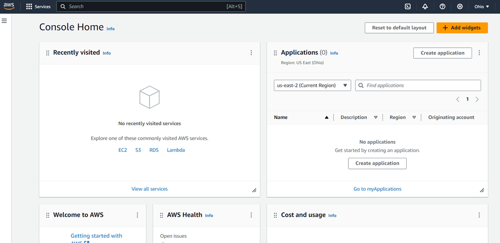
 Figure 1.1: AWS Management Console
Tip: Set Up Multi-Factor Authentication (MFA) which is Optional but Recommended
Core AWS services are key tools for building and managing cloud applications. They provide flexible and secure options for computing, storage, and databases, helping users deploy apps easily and manage resources effectively. Understanding core AWS services is essential for getting started in cloud computing. Here are three fundamental services that provide a solid foundation:
1. Amazon EC2 (Elastic Compute Cloud)
Overview:
Amazon EC2 (Elastic Compute Cloud) offers scalable virtual servers, called instances, for running applications in the cloud. You can easily launch these instances based on your needs, choosing from different configurations for anything from small websites to large applications. This flexibility allows you to quickly add or reduce resources based on demand, like during traffic spikes. With EC2, you only pay for the computing power you use, which makes it a cost-effective solution for businesses without long-term contracts.
Use Cases:
EC2 is versatile and can be used for a variety of purposes, including:
Hosting Websites: With EC2, you can quickly deploy and manage web applications. This allows you to host anything from simple websites to complex web applications, ensuring they are scalable and can handle varying levels of traffic.
Running Applications: EC2 provides the infrastructure needed to support business applications, whether they’re aimed at customers or designed for internal use. This includes everything from e-commerce platforms to enterprise software, giving you the flexibility to run various types of applications smoothly.
Processing Data: EC2 is ideal for handling heavy computational tasks, such as data analysis, machine learning, and batch processing. It can manage large datasets and perform complex calculations, making it a valuable tool for businesses that rely on data-driven insights.
Key Features:
EC2 offers several key features that enhance its functionality:
Various Instance Types: You can select from a range of instance types, including general-purpose, compute-optimized, and memory-optimized options. This means you can choose the right instance to match your specific workload needs, whether you require balanced performance for everyday tasks, high processing power for intensive applications, or increased memory for data-heavy operations.
Security Groups: EC2 allows you to set up security groups, which act as virtual firewalls to control incoming and outgoing traffic to your instances. You can configure these settings to specify which IP addresses and ports are allowed access, ensuring that only authorized users can interact with your applications. This adds a crucial layer of security to protect your data and resources.
Integration with Other AWS Services: EC2 integrates seamlessly with other AWS services, enhancing its capabilities. For instance, you can connect EC2 to Amazon S3 for scalable storage solutions, allowing you to store and retrieve data efficiently. You can also link it to Amazon RDS for database management, making it easier to handle data storage and retrieval for your applications. This integration allows you to build comprehensive, powerful cloud solutions
Getting Started with Amazon EC2
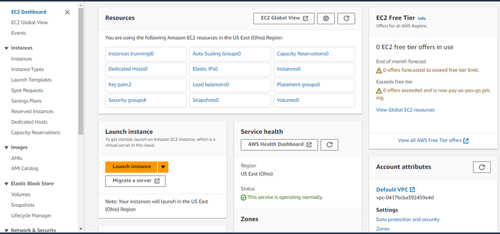
 Figure 1.2: EC2
1. Launching an Instance
Access EC2:
In the AWS Management Console, search for EC2 in the services menu or find it under the Compute section.
Select “Launch Instance”:Click on the “Launch Instance” button to start the process.
Choose an Amazon Machine Image (AMI):
An AMI provides the operating system and software configuration for your instance. You can select from pre-configured AMIs, including various Linux distributions and Windows versions.
Consider your requirements, such as application compatibility, when choosing an AMI.
Select an Instance Type:
Choose an instance type that fits your needs based on CPU, memory, storage, and network performance.
For basic use and testing, the t2.micro instance type is a good choice as it is eligible for the Free Tier.
2. Configuring Security Groups
Understanding Security Groups:
Security groups act as virtual firewalls that control inbound and outbound traffic to your instances.
Create a New Security Group:
During the launch process, you’ll have the option to create a new security group or select an existing one.
Define rules:
Inbound Rules: Specify which traffic is allowed to reach your instance. For example, allow SSH (port 22) for Linux instances and RDP (port 3389) for Windows instances.
Outbound Rules: Control the traffic that can leave your instance (typically set to allow all by default).
3. Connecting to Your Instance
Connecting to a Linux Instance:
After launching, you can connect via SSH.
Use a terminal or command prompt. The command will look something like this: ssh -i /path/to/your-key.pem ec2-user@your-instance-public-dns
Ensure your key pair (created during instance launch) is secure and accessible.
Connecting to a Windows Instance:
Use Remote Desktop Protocol (RDP) to access your Windows server.
Retrieve the administrator password using your key pair through the AWS Management Console.
Use an RDP client (like Microsoft Remote Desktop) to connect using the instance's public IP address and the decrypted password.
Once your instance is running, you can manage it through the EC2 dashboard. Just keep an eye on usage to avoid extra charges!
2. Amazon S3 (Simple Storage Service)
Overview:
Amazon S3 (Simple Storage Service) is a cloud storage solution designed to securely and reliably store and retrieve any amount of data. It provides high durability, meaning your data is safe and unlikely to be lost, and high availability, ensuring you can access your data whenever you need it. This makes S3 an excellent choice for businesses and individuals looking to store data in the cloud.
Use Cases:
S3 can be used for various purposes, including:
Backup Solutions: You can store backups of important data and applications, which is crucial for disaster recovery. If something goes wrong, you can easily restore your data from these backups.
Hosting Static Websites: S3 allows you to host static websites effortlessly. You can store and serve files like HTML, CSS, and JavaScript directly from S3, making it simple to share content online.
Archiving Data: S3 is great for keeping historical data secure. You can archive files that you don’t use often but still need to access later, ensuring they are safe and readily available when required.
Key Features:
S3 offers several key features
Buckets for Organization: In S3, you store files in "buckets," which are like folders that help you keep your data organized. Each bucket can contain a large number of files, making it easy to manage your data.
Versioning for File Recovery: S3 offers versioning, which allows you to keep multiple versions of a file. If you accidentally overwrite or delete a file, you can easily recover an earlier version, providing peace of mind.
Robust Access Controls: S3 provides fine-grained access permissions, meaning you can control who can see or manage your data. You can set rules to allow specific users or group’s to access certain files, enhancing security and ensuring that sensitive information is protected.
Exploring Amazon S3
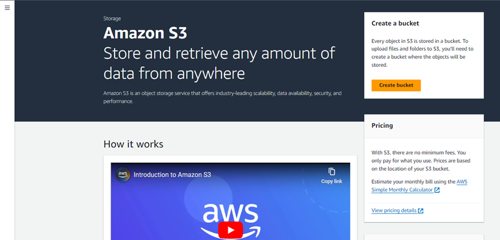

Figure 1.3: S3
1. Creating a Bucket
Access the S3 Console:
Log in to the AWS Management Console.
Search for S3 in the services menu or find it under the Storage section.
Click on “Create Bucket”:
Once in the S3 console, click the “Create bucket” button to start the bucket creation process.
Specify a Unique Bucket Name:
Enter a unique name for your bucket. The name must be globally unique across all AWS accounts and must match to specific naming conventions (e.g., no uppercase letters, must be between 3-63 characters).
Choose a Region:
Select the AWS region where you want to store the bucket. Choosing a region close to your users can help reduce latency.
Configure Options (Optional):
You can set various options during bucket creation, such as versioning (to keep multiple versions of files), logging (to track access requests), and tags (to organize your resources).
Set Permissions:
Configure permissions to control who can access the bucket. You can allow or block public access and set permissions for specific AWS accounts.
Click “Create Bucket”:
Review your settings and click “Create bucket” to finalize the process.
2. Uploading Files
Select Your Bucket:
In the S3 console, click on the bucket you just created to open it.
Click on “Upload”:
In your bucket, click the “Upload” button to begin adding files.
Add Files:
Drag and drop files into the upload window or click “Add files” to browse your computer for files to upload.
Set Permissions:
Before completing the upload, you can specify permissions for the files:
Public Access: If you want anyone to access the files, set them to public.
Private Access: Keep files private, accessible only to you or specific users.
Click “Upload”:
Review your settings and click the “Upload” button to start the upload process.
3. Accessing Files
Files in S3:
Once uploaded, your files will appear in the bucket. Each file has a unique URL.
Access via URLs:
To access a file, click on it to view its properties. You’ll find the Object URL, which can be used to access the file directly in a web browser.
Share or Embed:
You can share this URL with others or embed it in web pages or applications. Depending on your permissions, anyone with the link can access the file.
3. AWS Lambda
Overview
AWS Lambda is a serverless computing service from Amazon Web Services that enables you to run code without the need of managing servers. It automatically scales your applications in response to events, allowing you to focus on writing code rather than worrying about infrastructure.
Use Cases
AWS Lambda can be applied in various scenarios, providing flexibility and efficiency. Here are some common use cases:
Data Processing: Handle real-time data streams and transform data as it flows in.
Web Applications: Build serverless back ends for dynamic web and mobile apps.
Automation and Scheduled Tasks: Automate workflows and run scheduled jobs seamlessly.
File Processing: Process files uploaded to S3, such as image or video manipulation.
IoT Applications: Respond to events from IoT devices and process data in real time.
Key Features of AWS Lambda
AWS Lambda comes with a variety of features that enhance its usability and performance. Here are some key features:
Serverless: No need for infrastructure management; pay only for what you use.
Event-Driven: Triggers functions automatically based on events from AWS services.
Flexible Language Support: Write code in multiple programming languages.
Scalability: Automatically scales to handle any workload.
Built-in Monitoring: Integrates with CloudWatch for logging and performance metrics.
Versioning and Aliases: Manage different versions and stable deployments easily.
Exploring AWS Lambda
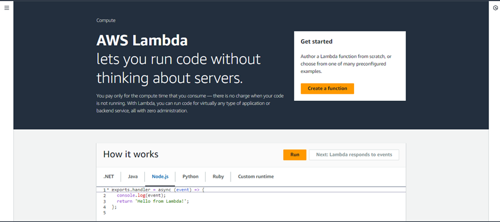

Figure 1.4: AWS Lambda
1. Creating a Lambda Function
Access the AWS Management Console:
Log in to your AWS account and go to the AWS Management Console.
Search for Lambda and select it from the services menu.
Click on “Create Function”:
Click the “Create function” button to start the setup.
Choose a Creation Method:
Select “Author from scratch” for a new function or use a blueprint to get started quickly.
Configure Basic Settings:
Function Name: Enter a descriptive name for your function.
Runtime: Choose the programming language (e.g., Python, Node.js).
Permissions: Select an existing role or create a new role to grant the function permissions to access other AWS services.
Click “Create Function”:
Review your settings and click the “Create function” button.
2. Writing Your Function Code
Edit Code:
You can write your code directly in the built-in code editor or upload a .zip file with your code and dependencies.
Handler:
Define the handler, which is the entry point for your function (format: file_name.function_name).
3. Configuring Function Settings
Environment Variables: Set environment variables to configure your function without hardcoding values.
Memory and Timeout: Adjust the memory size and timeout settings based on the expected load and processing time.
4. Setting up Triggers
Add Event Sources:
Configure triggers to make your function respond to events, such as S3 uploads, DynamoDB changes, or API Gateway requests.
Add a Trigger: Click “Add trigger” in the function configuration and select the event source.
5. Testing Your Function
Create Test Events:
Use the “Test” feature to create sample events that simulate what your function would receive in a real scenario.
Run the Test: Click the “Test” button to execute the function and view the output.
6. Monitoring and Logs
CloudWatch Logs: AWS Lambda automatically creates logs in CloudWatch for monitoring and debugging.
View Metrics: Monitor invocation counts, execution duration, and error rates directly from the CloudWatch console.
AWS Identity and Access Management (IAM) is essential for managing access and securing your AWS environment. IAM allows you to control who can access your AWS resources and what actions they can perform, ensuring that your cloud environment remains secure and compliant. Here’s a closer look at its key components:
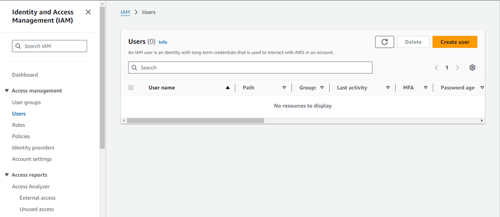

Figure 1.5: IAM
1. Creating Users
User Management: IAM enables you to create individual users within your AWS account, each with their own unique credentials. This allows you to manage access on a per-user basis, enhancing security and accountability.
2. Managing Permissions
Defining Access: With IAM, you can set permissions to specify what actions users can perform and which resources they can access. You can use policies—documents that define permissions—to grant fine-grained access, tailoring permissions to meet specific needs.
3. Best Practices
Principle of Least Privilege: Always stick to the principle of least privilege, which means giving users only the permissions necessary to perform their job functions. This minimizes the risk of unauthorized access and potential security breaches.
Basic Pricing Concepts
AWS uses a pay-as-you-go pricing model, which means:
You pay only for the resources you use, such as compute time, storage space, and data transfer.
It's important to monitor your usage to avoid unexpected charges. Use the Billing Dashboard in the AWS Management Console to track your expenses.
In this introductory course, you will learn:
Overview of AWS
AWS Free tier and Benefits
Creating AWS account
Introduction to AWS management console
Core AWS Services
Introduction to IAM (Identity and access management)
Amazon Web Services (AWS) is essential for anyone looking for a career in cloud computing. Since most organizations today use cloud technologies, it can be used in any industry. This course will give you a brief intro about Amazon Web Services (AWS). So that you can start your cloud computing journey.